
What CapCut Modèles Actually Are (and Why They Matter)
A CapCut template is a pre-built video project — complete with transitions, music, text animations, effects, and timing — where you swap in your own clips and hit export. That's the surface-level answer. The real answer is more interesting.
I spent a weekend pulling apart about 40 popular templates to see how they're built. Each one is essentially a mini production blueprint. The creator has already solved the hard problems: which transition fits after a beat drop, how long each clip should hold before cutting, where text appears and disappears, and how effects layer without looking cluttered. You're getting someone else's editing decisions packaged into a reusable format.
That distinction matters. A filter changes how your video looks. A template changes how your videoflows. The pacing, the rhythm, the structure — these are the things that separate a video people watch to the end from one they scroll past in two seconds.
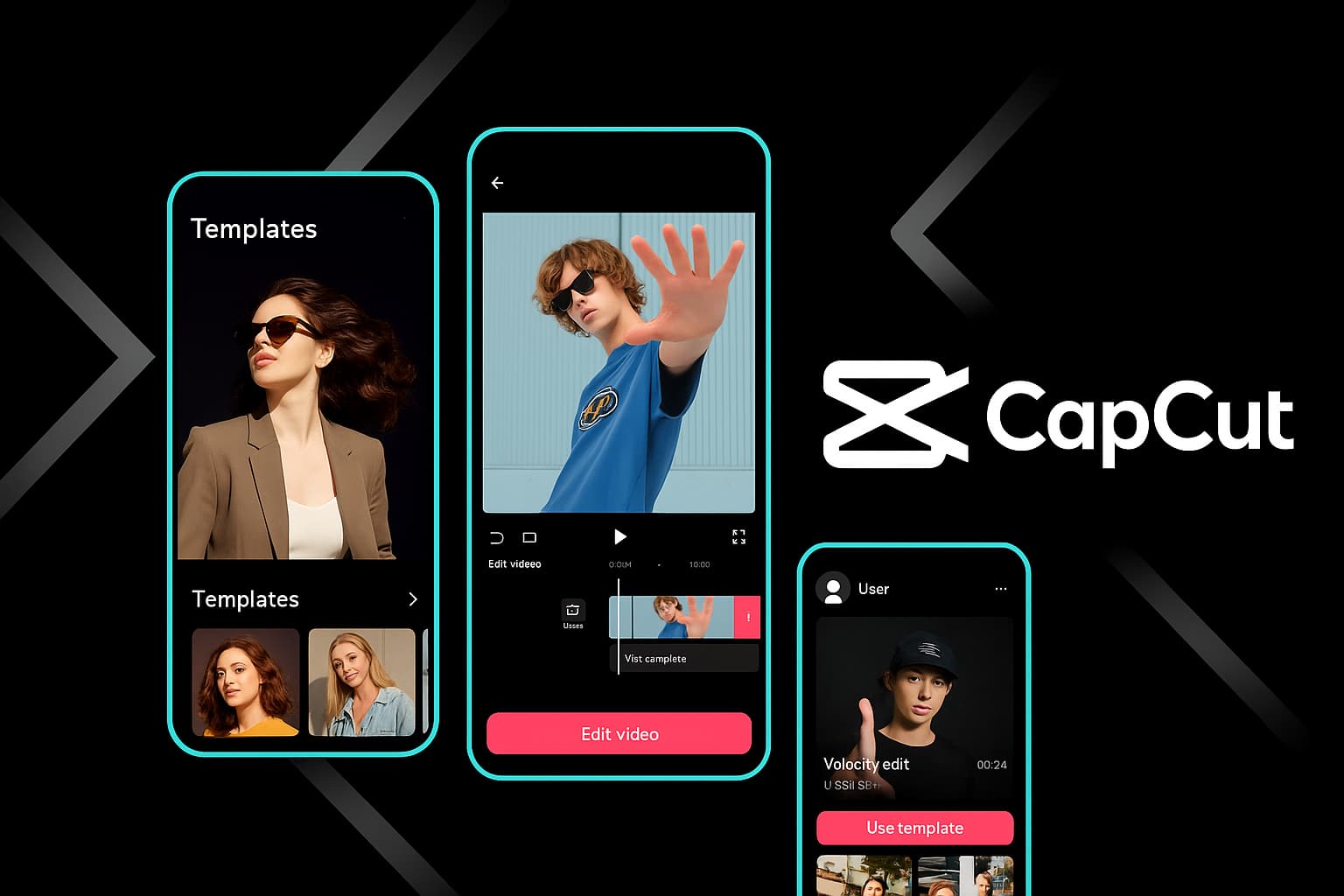
CapCut currently hoststhousands of templates, and new ones appear daily. They range from simple three-clip slideshow formats to complex 20+ clip productions with synchronized beat-matching, parallax effects, and layered text. The free library alone is massive — I've never hit a point where I couldn't find something usable without paying.
Something I noticed early on:Modèles created by users with high usage counts tend to have tighter timing and cleaner transitions than the generic library templates. Sort by popularity first — it's a genuine quality signal, not just a vanity metric.
Where to Find CapCut Modèles (All the Spots People Miss)
Most people open the Modèles tab and stop there. That works fine, but you're only seeing a fraction of what's available.
The Built-In Template Library
The obvious starting point. Open CapCut, tapModèlesat the bottom (mobile) or click it in the top bar (desktop). You'll see trending templates organized by category — For You, Trending, Business, Vlog, Gaming, and more. The algorithm learns your preferences over time, so the "For You" section gets better the more you use it.
What most people miss: thesearch barin the template section accepts very specific queries. Type "beat drop transition" or "three photo slideshow" and you'll get targeted results that generic browsing would never surface. I've found some of my favorite templates this way — deep in the library, barely any usage count, but perfectly suited to what I needed.
TikTok Shared Template Links
This is the hidden goldmine. When creators on TikTok make videos using CapCut templates, many include a "CapCut - Try this template" link in their description or as a sticker on the video itself. Tapping that link opens the template directly in your CapCut app. You skip the entire browsing process and land on a template you've already seen in action.
In my experience, the best templates circulate through TikTok before they trend in CapCut's own library. If you want to be early on a template trend, watch TikTok. The templates showing up in creator videos today will be saturated in CapCut's "Trending" tab next week.
Community Creators and Template Makers
Some CapCut users build templates as their primary content. They publish new templates weekly, often tied to trending sounds or seasonal events. Following a few reliable template creators means you always have fresh options without digging through the library yourself.
Search "CapCut template creator" on TikTok or Instagram and you'll find accounts dedicated to this. Bookmark the ones whose style matches yours.
Ready to Browse Modèles?
Jump into CapCut's template library and find your next viral video format.
Open CapCut ModèlesThe Template Categories Worth Your Time
Not all template categories are created equal. After testing hundreds of them across different content styles, here's where the real value sits.
TikTok Trending Modèles
These update constantly. A template that's trending today might not even appear in search next month. The advantage: using a currently trending template gives your video a recognition factor. Viewers subconsciously register the familiar format and are more likely to watch it through. I've seen engagement rates double just from matching the trending format of the week.
The downside is saturation. If millions of people use the same template, yours needs stronger content to stand out. My approach: grab a trending template, use it for the structure, then manually adjust at least two things — the transition timing and the text placement. Small changes that make it feel less cookie-cutter.
Instagram Reels Modèles
Reels templates tend to be shorter and punchier than TikTok ones. The bestReels templatesare built around quick cuts, clean text overlays, and music-synced transitions. They prioritize visual polish over complexity.
One pattern I noticed: Reels templates that use a simple three-act structure — hook shot, content sequence, closing shot — consistently outperform more complex templates on Instagram. The algorithm seems to reward templates where viewers don't have to think about what's happening structurally.
Business and Brand Modèles
Product showcases, service introductions, announcement videos, sale promotions — these templates are surprisingly well-designed in CapCut. The color schemes are professional, the text animations are clean without being distracting, and the pacing suits commercial content.
For anyone running a small business social media account, these templates are a genuine time-saver. I've helped three small business owners set up their social content workflow entirely around CapCut business templates. They went from posting once a week (because editing felt overwhelming) to posting daily.
Vlog and Lifestyle Modèles
Longer clip durations, softer transitions, ambient music. These work for travel content, day-in-the-life videos, and montage-style edits. The good ones give your clips room to breathe instead of cutting every second.
Photo Slideshow and Memory Modèles
Drop in photos instead of video clips. Great for birthday compilations, anniversary posts, year-in-review content, and memorial videos. The photo templates add subtle motion (Ken Burns effect, parallax, gentle zooms) that make still images feel cinematic.
Step-by-Step: How to Download and Use CapCut Modèles
The process differs slightly depending on your device. Here's the exact workflow for each platform.
On Mobile (iOS & Android)
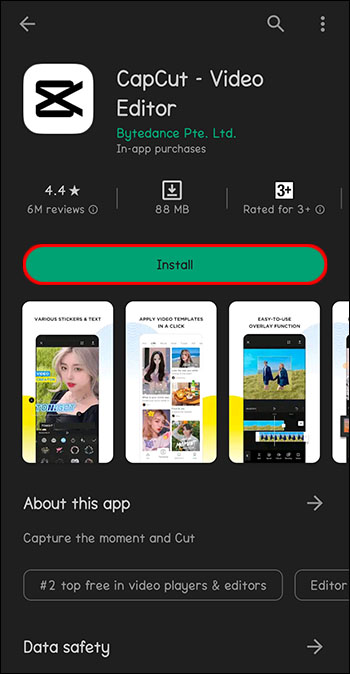
- Open CapCutand tap theModèlestab at the bottom of the screen. If you don't see it, update your app — older versions bury it in a different menu.
- Browse or search.Use the category tabs at the top (Trending, For You, Vlog, etc.) or tap the search icon and type keywords. Specific searches like "slow motion reveal" outperform vague ones like "cool template."
- Preview the template.Tap any template to see it play with sample footage. Pay attention to the clip count shown — it tells you how many clips you'll need. If it says "5 clips" and you only have 3 good ones, pick a different template or prepare to get creative with B-roll.
- Tap "Use template."This opens the clip selection screen. Select your footage from your camera roll in the order you want them to appear. CapCut will auto-fit them into the template slots.
- Customize.Once loaded, you're in the full editor. Change text, adjust clip positions within their slots, tweak the music volume, or swap out the audio track entirely.
- Export.Tap the export button (top right), choose your resolution — 1080p for social media, 4K if you need archival quality — and save or share directly.
Quick win:Before selecting your clips for a template, trim them in your gallery app first. Modèles auto-fit your clips, which sometimes means the best moment gets cropped out. Pre-trimming gives you control over which part of each clip the template uses.
On Desktop (Windows & Mac)
- Open CapCut Desktopand clickModèlesin the top navigation bar or on the home screen.
- Browse the library.Desktop gives you a wider view — you can see more templates at once and the preview player is larger. Use this advantage to really evaluate templates before committing.
- Click a templateto preview. The desktop previewer shows you the exact timeline structure, which is helpful for understanding how the template is built.
- Click "Use Template"to load it into a new project. Import your footage into the media panel, then drag clips into the template placeholder slots on the timeline.
- Refine in the timeline.Desktop gives you granular control. Adjust each transition's duration, change the easing curves, fine-tune text positioning pixel by pixel. This level of control is the main reason I do final template customization on desktop even when I browse templates on mobile.
- Exportfrom File > Export or the export button. Desktop exports are faster than mobile, and you get more format options including ProRes for high-quality workflows.
On CapCut Éditeur web
- Go tocapcut.comand log in. Navigate toModèlesfrom the dashboard.
- Search or browse.The web template library is slightly smaller than mobile but includes the most popular options.
- Select and load.Click a template, then click "Use this template." Upload your footage through the browser upload dialog.
- Edit in the browser editor.The web editor handles template customization well for basic changes — text edits, clip swaps, and color adjustments. For heavy modifications, I'd still recommend downloading the desktop app.
- Export and download.The web editor exports directly to your downloads folder or lets you share via link.
Download CapCut and Start Using Modèles
Available free on mobile, desktop, and web. No watermarks, no hidden fees.
Get CapCut FreeCustomizing Modèles Like a Pro (Not a Copy-Paste Creator)
Using a template straight out of the box works. But customizing it even slightly puts you ahead of 90% of people who use the same template with zero changes. Here's what I do with every template I use.
Swap or Adjust the Music
Template music is chosen to match the transitions, but it's also the most recognizable element. When thousands of videos use the same audio, yours blends into the noise. Swapping to a similar-tempo track from CapCut's audio library — or a trending sound from TikTok — keeps the template's timing feel while sounding fresh.
If you keep the original music, at least adjust the volume. Most templates set music louder than necessary. Dropping it 15-20% makes the audio feel less aggressive and more polished, especially if you're adding voiceover.
Adjust Transition Timing
This is the single highest-impact change you can make. Template transitions are set to match the default music. If your clips have different energy than the sample footage, those transition points might feel off. Shifting a transition by even half a second can transform the feel of the entire video.
On desktop, you can see the audio waveform in the timeline. Align your transitions to beat peaks in the waveform — that's the secret behind every template that feels "perfectly synced."
Add Your Brand Colors and Fonts
If you're creating content for a brand or personal brand, change the template's text colors to your brand palette. It takes 30 seconds and makes the output look intentional instead of templated. Same with fonts — CapCut has a wide font library, and swapping from the template's default to your brand font creates consistency across your content.
Remove the CapCut Outro
Some templates include a CapCut branded ending clip. Scroll to the end of your timeline after loading the template — if you see a short clip with the CapCut logo, just select it and delete. Your exported video will be completely clean.
Adjust the Aspect Ratio
Modèles are built for specific ratios (usually 9:16 for TikTok/Reels). If you need to repurpose for YouTube (16:9) or Instagram feed (1:1 or 4:5), change the project aspect ratio in settings after loading the template. You'll need to reposition some elements, but the core structure stays intact. I repurpose a single template across three platforms this way regularly.
From my workflow:I keep a "template kit" — a note with my brand hex colors, my two go-to fonts, my audio volume preferences, and my export settings. Every time I load a template, I run through this checklist. Takes two minutes and makes every video feel consistent without building from scratch.
CapCut Modèles vs. Autre Template Sources
CapCut isn't the only place to find video templates. But after testing alternatives extensively, here's why I keep coming back.
CapCut vs. Canva Video Modèles
Canva's video templates are great forstatic-feeling content— animated text, simple slideshows, presentations turned into videos. But Canva struggles with complex transitions, beat-synced editing, and anything that requires actual video editing skills to build. If your content is graphic-heavy (quotes, announcements, infographics), Canva wins. If your content is footage-heavy (vlogs, Reels, TikToks), CapCut wins by a wide margin.
The editing power gap is enormous. Canva gives you drag-and-drop simplicity. CapCut gives you drag-and-drop simplicityplusa full timeline editor underneath when you need it.
CapCut vs. Envato / Motion Array / Videohive
Paid template marketplaces like Envato and Motion Array offer premium templates for Premiere Pro, After Effects, and DaVinci Resolve. The production quality can be higher — more complex compositing, 3D elements, broadcast-level motion graphics. But you're paying $15-50 per template, and you need to know the host application to customize them.
CapCut's free templates don't match that ceiling quality, but they cover 80% of what most social media creators need at zero cost and zero learning curve. I use paid Envato templates for client work with specific requirements. For my own social content? CapCut templates, every time.
CapCut vs. InShot Modèles
InShot offers templates too, but the library is much smaller, updates less frequently, and the customization options are limited compared to CapCut. InShot's strength is simplicity for very basic edits. The moment you want to do anything beyond the template's preset structure, CapCut's editor gives you far more flexibility.
CapCut vs. VN Video Editor Modèles
VN is a solid free editor, and its template selection has grown. But CapCut's template library is roughly 10x larger, updates more frequently with trends, and the template-to-editor workflow is smoother. VN's templates also tend to focus on cinematic styles, while CapCut covers everything from gaming montages to cooking content to corporate presentations.
Advanced Template Strategies Most Guides Skip
Template Stacking
Nobody talks about this, but it works. Use a template for your intro sequence, then switch to manual editing for the body of your video, then grab a different template for the outro. You're combining the efficiency of templates where structure matters most (hooks and closings) with the creative freedom of manual editing for your actual content.
On desktop, you can export a template-based intro as a separate clip, then import it into your main project. On mobile, screen-record the template preview and use that as your intro layer. Hacky? Maybe. Effective? Absolutely.
Reverse-Engineering Modèles to Learn Editing
When I load a template on desktop, I don't just use it — I study the timeline. How did the creator time that transition? What easing curve is on that text animation? Why does the pacing feel so good at this specific BPM? Modèles are free editing lessons if you pay attention to the construction, not just the output.
This is how I learned speed ramping. I found a template with a perfect speed ramp, opened it on desktop, and studied the speed curve settings. Replicated it manually in my next project. Took me five minutes to learn what would've taken an hour of tutorial-watching.
Batch Content Creation with Modèles
Here's my process for producing a week's worth of Reels in one sitting: pick three templates I like, film 15-20 short clips in one batch, then cycle through the templates swapping in different clip combinations. Same three templates, different footage, different text — you get 9-12 unique videos in about an hour. The templates handle the production quality; I just focus on the content.
This batch approach works because templates eliminate the decision fatigue of editing. When you're not spending mental energy on "where should this transition go" and "what text animation fits here," you can focus entirely on message and story.
Watch out for this:Don't use the same popular template more than twice in a row on the same account. Followers notice, and the algorithm may deprioritize repetitive-looking content. Rotate through at least three template styles to keep your feed feeling varied.
Fixing Common Template Problems
Modèles aren't perfect. Here are the issues I run into most and how to solve them quickly.
Template won't load or crashes:Usually a memory issue on mobile. Close other apps, clear CapCut's cache (Settings > Storage > Clear Cache), and try again. If it persists, the template might use features from a newer CapCut version — update your app.
Clips look cropped or zoomed:Modèles have preset framing. After inserting your clips, tap each one and adjust the position/scale manually. On desktop, use the preview window's transform handles to reframe. This takes an extra minute but prevents awkward cropping of faces or key subjects.
Audio doesn't match after swapping music:The original template was timed to its default track. After swapping audio, you'll likely need to adjust 2-3 transition points to re-sync with the new beat. Use the waveform on desktop or tap-to-the-beat on mobile to find the right moments.
Template looks different on desktop vs. mobile:Some templates use mobile-specific effects that render differently on desktop. If a template looks perfect on mobile but odd on desktop, stick to mobile for that particular template. The reverse is rarely an issue.
Export quality seems lower than preview:Check your export settings. Default export on mobile is sometimes set below maximum quality. Go toexport settings and manually select 1080p at 60fps (or 30fps for most social media). Bitrate should be set to "High" or "Recommended."
Questions fréquentes About CapCut Modèles
Yes, the vast majority of CapCut templates are completely free. The library includes thousands of free options across every category — TikTok trends, Reels formats, business templates, vlogs, and more. Some premium templates are marked with a Pro badge and require a CapCut Pro subscription, but the free collection is extensive enough that I rarely hit a paywall. Even when I do, there's usually a free alternative that's 90% as good.
Yes. Modèles — including their bundled music and effects — are licensed for use in CapCut exports. This covers brand content, ads, client work, and product videos. If you're using CapCut Pro, all premium assets (fonts, music, effects) come with commercial licensing. For the free plan, the built-in library assets are safe for commercial use within CapCut exports. If you import your own copyrighted music into a template, you're responsible for those rights separately.
Three ways. First, open the Modèles tab in CapCut — the "Trending" section at the top shows currently popular templates. Second, browse TikTok and look for videos with "CapCut - Try this template" links in descriptions. Third, follow CapCut template creator accounts on TikTok and Instagram — they publish new templates tied to trends, often before those templates hit the main library's trending section. I find the TikTok method surfaces the best templates fastest.
Absolutely — and you should. After loading a template, you have full editing access to every element. Swap clips, edit text, change fonts and colors, adjust music and volume, modify transitions, tweak timing, apply different filters, and alter effects. The template is a starting point, not a locked format. On desktop especially, you can see and modify every single keyframe and property the template creator set up.
Most templates work across CapCut mobile (iOS and Android), desktop (Windows and Mac), and the web editor. The mobile app has the largest template selection because many templates are user-created on mobile. Some mobile-specific effects may look slightly different on desktop, but the core structure and timing transfers. The web editor has a somewhat smaller template library but covers all the most popular categories.
After loading a template into the editor, scroll to the very end of the timeline. If there's a short CapCut-branded outro clip, tap or click to select it, then hit delete. That's it — your exported video will be completely clean with no branding or watermarks. Not all templates have this, but when they do, it takes literally two seconds to remove.
Modèles are complete video projects — they include clip structure, transitions, music, text, effects, and timing. You drop in your footage and the video is essentially built for you. Presets are individual settings applied to specific elements: a color grade preset changes how your footage looks, a text preset changes your title style, an effect preset applies a specific visual treatment. Modèles handle the whole production; presets handle individual elements within your own project structure.
Start Using Modèles Right Now
The fastest path from zero to published video is a CapCut template. Not because templates are a shortcut — because they're smart infrastructure. They handle the technical production decisions (timing, transitions, pacing) so you can focus on what actually matters: your content, your message, your creative direction.
Whether you're making your first TikTok or your five-hundredth Reel, templates remove friction from the process. The best creators I know use templates as foundations, not crutches. They load a template, customize it to fit their brand, and publish content at a pace that would be impossible if they built every video from scratch.
Grab CapCut, open the template library, and start experimenting. Your first template video will take about five minutes. Your tenth will take two. And somewhere around the twentieth, you'll start modifying templates in ways the original creator never imagined — and that's when things get really interesting.
Get Started with CapCut Modèles Today
Free download, no watermarks, thousands of templates ready to customize. Available on iOS, Android, Windows, Mac, and web.
Download CapCut Free