
Why CapCut Is the Go-To Video Editor for iPhone and iPad
If you're an iPhone or iPad user looking for a video editing app that doesn't nickel-and-dime you for basic features, CapCut is almost certainly what you want. I've been using it on my iPhone 15 Pro and iPad Air for over a year now, and honestly — it's replaced every other editing app I've tried. No watermarks, no surprise paywalls mid-edit, no "upgrade to export in HD" nonsense.
What makes CapCut particularly great on iOS is how deeply it integrates with Apple's ecosystem. We're talking iCloud sync between your devices, Siri Shortcuts for quick actions, iOS widget support on your home screen, proper Haptic Touch feedback, and optimizations that take full advantage of Apple's silicon chips. It's not just an Android app ported over — it's been genuinely optimized for how Apple users work.
In this guide, I'll walk you through everything: downloading from the App Store, setting up for optimal performance, leveraging iOS-specific features most people never discover, and troubleshooting the common issues that trip people up. Whether you're on a brand-new iPhone 16 Pro Max or an older iPhone SE, there's something here for you.
Quick note: CapCut is 100% free to download and use. The free version includes full video editing, AI features, effects, templates, and watermark-free 4K export. CapCut Pro is an optional upgrade for power users who want premium templates and extra cloud storage.
How to Download CapCut on iPhone & iPad (Step-by-Step)
The download process is straightforward — but I'll include the details because I've seen people accidentally download copycat apps or get confused by regional availability. Here's exactly what to do:
Open the App Store
Tap the blue App Store icon on your iPhone or iPad home screen. Make sure you're signed in with your Apple ID (you'll need one to download any app).
Search for "CapCut"
Tap the Search tab at the bottom, type CapCut in the search bar, and tap Search. The official app should appear as the first result.
Verify It's the Official App
Look for "CapCut - Video Editor" by Bytedance Pte. Ltd. It has a distinctive black-and-white logo and millions of ratings (4.7 stars). Don't download lookalikes.
Tap GET & Authenticate
Tap the GET button. Confirm with Face ID, Touch ID, or your Apple ID password. The download starts immediately — it's about 420MB on a fresh install.
Open & Set Up
Once installed, tap Open (or find the CapCut icon on your home screen). Sign in with Apple ID, Google, email, or Facebook to enable cross-device sync.
Pro tip: Sign in with your Apple ID for the smoothest experience. It integrates with iCloud Keychain, and you won't need to remember another password. Plus, if you ever delete and reinstall the app, your CapCut Pro subscription restores automatically.
Ready to Download?
Get CapCut on your iPhone or iPad right now — it takes less than 2 minutes.
iOS System Requirements
Before you download, let's make sure your device can handle CapCut. The good news: if your iPhone or iPad is from the last 5-6 years, you're almost certainly fine.
| Requirement | Minimum | Recommended |
|---|---|---|
| iOS Version | iOS 15.0 / iPadOS 15.0 | iOS 17.0+ / iPadOS 17.0+ |
| iPhone Model | iPhone 8 or later | iPhone 11 or later (A13+) |
| iPad Model | iPad (6th gen) or later | iPad Air (4th gen) / iPad Pro M1+ |
| Storage (app only) | ~420MB | 2-3GB free (for projects) |
| RAM | 3GB | 4GB+ (6GB for 4K editing) |
| Internet | Required for download & AI features | Wi-Fi for initial setup & templates |
What if your device doesn't meet requirements? If you're running iOS 14 or earlier, you'll need to update your operating system first. Go to Settings > General > Software Update. If your device can't update to iOS 15 (iPhone 7 and older), unfortunately you won't be able to run the current version of CapCut — but you may be able to download an older compatible version through your App Store purchase history.
Important: While CapCut runs on iPhone 8, the AI features (background removal, auto-captions, AI effects) perform significantly better on A13 Bionic chips and newer. If you rely heavily on AI tools, an iPhone 11 or later makes a noticeable difference in processing speed.
iOS-Specific Features You Won't Find on Android
Here's where things get interesting for Apple users. CapCut doesn't just exist on iOS — it leverages iOS in ways that genuinely make the editing experience better. These are the features I keep coming back to:
iCloud Sync
Your CapCut projects, drafts, and preferences sync seamlessly across all your Apple devices through iCloud. Start an edit on iPhone during your commute, pick it up on iPad at home — everything's there.
Haptic Touch Integration
Long-press elements on the timeline for contextual Haptic Touch menus. Feel subtle vibrations when snapping clips to beats, trimming to exact frames, or hitting keyframe positions. It's that Apple-polish detail.
iOS Home Screen Widgets
Add CapCut widgets to your home screen for quick access to recent projects, one-tap new project creation, or template shortcuts. Small, medium, and large widget sizes supported.
Siri Shortcuts
Set up Siri voice commands like "Hey Siri, start a new CapCut project" or create automation workflows that export finished videos directly to your Photos library or share to social apps.
ProRes & Cinematic Mode
Import ProRes footage from iPhone 13 Pro and later directly into CapCut without conversion. Edit Cinematic Mode videos with full depth-of-field control preserved in the timeline.
Live Photos & SharePlay
Convert Live Photos into editable video clips with a single tap. Use SharePlay to collaboratively review edits with friends or colleagues in FaceTime while editing together in real-time.
Setting Up iCloud Sync for CapCut
iCloud sync is one of those "set it and forget it" features that makes the multi-device workflow seamless. Here's how to make sure it's working:
- Open Settings on your iPhone or iPad
- Tap your name at the top (Apple ID settings)
- Go to iCloud > Apps Using iCloud
- Find CapCut in the list and toggle it ON
- Open CapCut, go to Settings > Cloud Sync and enable "Sync drafts via iCloud"
Once enabled, your projects sync automatically when connected to Wi-Fi. You can also force a manual sync by pulling down on the project list. The sync includes your project files, applied effects, timeline edits, and custom presets — essentially your entire workspace transfers between devices.
Storage heads-up: iCloud sync uses your iCloud storage quota. If you have the free 5GB plan and large video projects, you might hit the limit quickly. Consider the 50GB plan ($0.99/month) or 200GB plan ($2.99/month) if you're a heavy editor. The video project files themselves are surprisingly compact — it's the source footage that takes space.
Useful Siri Shortcuts for CapCut
Siri Shortcuts integration turns CapCut into something you can control without even opening the app. Here are the shortcuts I actually use daily:
- "New Reel" — Opens CapCut directly into a new 9:16 project with Instagram Reels export settings pre-configured
- "Edit last video" — Opens your most recent project draft, perfect for picking up where you left off
- "Quick trim" — Launches CapCut's quick edit mode with your last recorded video pre-loaded
- "Export and share" — Triggers export on the current project and opens the iOS share sheet when done
You can create these in the Shortcuts app using CapCut's available actions, or simply use CapCut enough that Siri suggests relevant shortcuts based on your habits. I've even set up an automation that automatically imports any video I record after 6 PM (my content filming time) into a new CapCut project.
iPad-Specific Features: Why Your iPad Becomes an Editing Beast
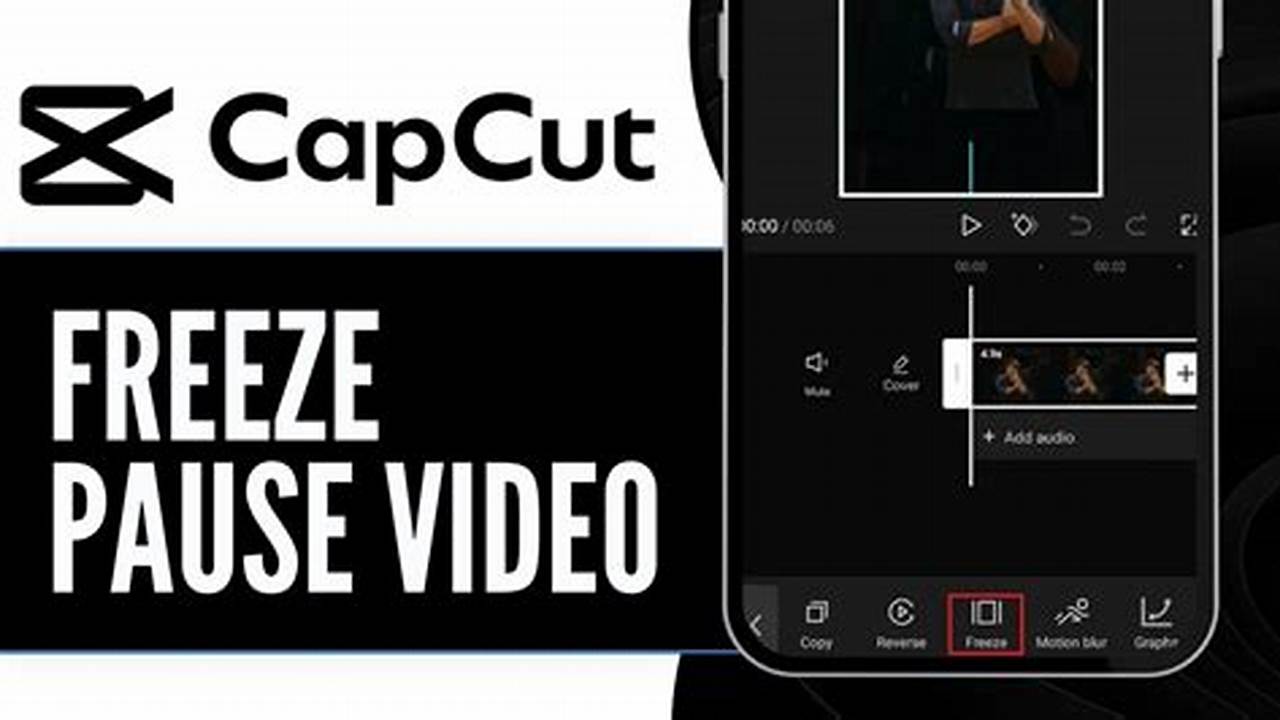
If you own an iPad — especially an iPad Air or iPad Pro — CapCut becomes a genuinely different experience compared to the iPhone version. The larger screen transforms the editing workflow, and Apple's hardware features get put to serious use:
Apple Pencil Support
The Apple Pencil isn't just for drawing apps. In CapCut, it enables precise timeline scrubbing (frame-by-frame accuracy), drawing text and annotations directly on your video, handwriting-to-text conversion for captions, and pinpoint keyframe placement. I find timeline editing with Apple Pencil significantly more precise than finger-based control — especially when splitting clips at exact audio beats.
Stage Manager & Multitasking
On iPads with Stage Manager support (iPad Pro M1+, iPad Air M1+), you can run CapCut in a resizable window alongside Safari for reference footage, Notes for your script, or Music for audio selection. Split View on all supported iPads lets you drag and drop files from the Files app directly into your CapCut timeline — an incredibly efficient workflow.
External Display Support
Connect your iPad to an external monitor (USB-C or HDMI adapter), and CapCut extends your workspace. The external display shows your video preview at full resolution while your iPad screen displays the timeline and controls. It's a pseudo-desktop editing setup that's surprisingly professional.
Keyboard Shortcuts
Pair a Magic Keyboard or Smart Keyboard Folio and you unlock a full set of professional shortcuts:
- Space — Play/Pause preview
- Cmd + Z / Cmd + Shift + Z — Undo/Redo
- Cmd + B — Split clip at playhead
- Cmd + C / Cmd + V — Copy/Paste elements
- Cmd + E — Export project
- [ and ] — Trim clip start/end to playhead
- J, K, L — Reverse, pause, forward playback
iPad power move: If you're editing on an M-series iPad Pro, you can work with 4K ProRes footage natively without any conversion or proxy workflow. The M-chip handles real-time 4K playback with multiple effects stacked on the timeline. Honestly, it rivals what you'd experience on a mid-range laptop.
iOS Storage Management Tips for CapCut
Video editing eats storage. It's just the nature of the beast. But on iOS, there are smart ways to keep CapCut from consuming your entire 128GB or 256GB — here's what I've learned through trial and (painful) error:
Understanding What Uses Space
- The app itself: ~420MB (minimal, can't reduce)
- Downloaded effects & templates: 200MB - 2GB (this adds up quickly)
- Project cache: 500MB - 5GB+ (temporary render files)
- Exported videos: Stored in Photos (not counted in CapCut's storage)
- Draft project files: 50-200MB each (the timeline data, not source footage)
How to Free Up Space
- Clear the cache regularly: Go to CapCut Settings > Storage > Clear Cache. This removes temporary render files without affecting your projects. I do this weekly and typically free up 1-3GB.
- Delete unused downloaded effects: CapCut downloads effects, fonts, and stickers on-demand. If you've accumulated many, go to Settings > Storage > Downloaded Resources and remove what you don't use.
- Archive completed projects: Once you've exported a final video, you don't need the project draft sitting on your device. Back it up to iCloud or delete it. The source footage stays in your Photos library regardless.
- Use iCloud Optimized Storage: Enable Settings > Photos > Optimize iPhone Storage. This keeps full-resolution videos in iCloud and only downloads them to your device when you need them for editing.
- Export at appropriate resolution: Not every video needs 4K. A 1080p export for Instagram Reels is roughly 1/4 the file size of 4K — and visually identical on phone screens.
The 50% rule: Try to keep at least 10-15% of your total device storage free at all times. iOS itself needs breathing room for system operations, and CapCut's export process temporarily needs roughly the same space as your final video size. Running out of storage mid-export is incredibly frustrating (ask me how I know).
CapCut iOS vs. Android: Which Version Is Better?
I use both platforms (iPhone daily, a Pixel for testing), so I can give you an honest comparison. The core editing features are identical — same timeline, same effects, same templates. But there are meaningful differences in how each version behaves:
| Feature | iOS Version | Android Version |
|---|---|---|
| Performance (flagship) | Excellent (Apple silicon optimization) | Very Good (varies by chipset) |
| ProRes Support | ✔ Native | ❌ Not available |
| Cloud Sync | iCloud + CapCut Cloud | CapCut Cloud only |
| Haptic Feedback | ✔ Full Taptic Engine | Basic vibration (device-dependent) |
| Widgets | ✔ Full widget support | ✔ Android widgets (varies) |
| Voice Assistant | ✔ Siri Shortcuts | Limited Google Assistant |
| Tablet Experience | ✔ iPad optimized + Pencil | Basic tablet layout |
| File Access | Photos + Files app | Full file system access |
| Update Frequency | Every 2-3 weeks | Every 2-3 weeks |
| APK Sideloading | ❌ App Store only | ✔ Direct APK install |
| Export Quality | Identical (up to 4K/60fps) | Identical (up to 4K/60fps) |
| App Size | ~420MB | ~280MB (varies) |
The verdict: If you're in the Apple ecosystem, the iOS version is objectively better thanks to tighter hardware integration, ProRes support, iCloud sync, and the iPad experience. Android has the edge in file system flexibility and sideloading options. Feature-for-feature in the actual editor, they're neck and neck — you won't miss any editing capability on either platform.
One thing worth mentioning: CapCut tends to release new features simultaneously on both platforms now. In 2023, Android sometimes got features first, but in 2024-2025, the iOS version has been matching or even leading with new feature rollouts — likely due to Apple's growing influence in the content creator market.
Join Millions of iOS Creators
CapCut is the #1 free video editor on the App Store. See why for yourself.
Key iOS Editing Features Worth Exploring
Once you have CapCut installed, here are the iOS-specific workflows and features that'll make you wonder how you edited without them:
Photos App Integration
CapCut on iOS hooks directly into your Photos library with full access to albums, favorites, and even Smart Albums. The integration goes both ways — exported videos save directly to Photos with proper metadata (date, location if you choose, and even the "Edited with CapCut" tag). You can also import from the Files app, iCloud Drive, Dropbox, or Google Drive without leaving CapCut.
Cinematic Mode Editing
Shot a video in Cinematic Mode on your iPhone 13 or later? CapCut preserves the depth data. This means you can change the focus point after recording, adjust the bokeh intensity, and even animate focus pulls between subjects — all within CapCut's timeline. This is something that very few third-party editors support on iOS.
Action Mode & ProRes Workflow
iPhone 14 and 15 Pro users shooting in ProRes or Action Mode can import that footage directly. No transcoding, no quality loss, no waiting for proxy generation. The Apple silicon in your iPhone handles native ProRes playback in the editing timeline, which means scrubbing through ProRes 4K at 30fps feels buttery smooth. On Android, you'd need to convert that footage first.
AirDrop Your Exports
Finished your edit? AirDrop it to your Mac in seconds for final color grading in DaVinci Resolve, upload to YouTube from your desktop, or instantly send it to a collaborator's device. The AirDrop integration means you never have to fiddle with cables, cloud uploads, or messaging apps for file transfer. It's one of those small Apple conveniences that saves cumulative hours.
Focus Mode Integration
Set up a "Video Editing" Focus Mode on your iPhone or iPad that silences notifications while CapCut is in the foreground. You can configure it to allow only specific contacts or apps to break through — meaning you won't lose your creative flow because of a group chat notification. Small detail, but professional editors know how valuable uninterrupted focus time is.
Troubleshooting Common iOS Download & Install Issues
Most CapCut installs go smoothly. But when things go wrong, here are the most common issues and their fixes:
❌ "Cannot Download App" or Stuck Download
- Check your Wi-Fi connection — Large apps like CapCut (420MB) may not download over cellular by default. Go to Settings > App Store > App Downloads and select "Always Allow" or connect to Wi-Fi.
- Restart the download — Tap the CapCut icon on your home screen (it might show a loading circle). If stuck, press and hold, tap "Prioritize Download" or "Pause Download" then resume.
- Check available storage — Go to Settings > General > iPhone Storage. You need at least 500MB free for the install plus temporary space.
- Sign out and back into the App Store — Go to Settings > Apple ID > Media & Purchases > Sign Out, then sign back in.
❌ "CapCut Not Available in Your Country"
- CapCut has been restricted in some regions (notably India, and briefly in Montana, USA). Check if there's a regional alternative available.
- If you recently moved countries, you may need to update your App Store region: Settings > Apple ID > Media & Purchases > Country/Region.
- VPNs don't work for App Store region restrictions — the store uses your Apple ID region, not your IP location.
❌ App Crashes on Launch
- Update iOS — Running an outdated iOS version is the #1 cause of crashes. Update to the latest version available for your device.
- Force close and reopen — Swipe up from the bottom (or double-click the home button), find CapCut, swipe it away, then reopen.
- Reinstall the app — Delete CapCut (your projects sync to the cloud if you're logged in), restart your device, and reinstall from the App Store.
- Check for app updates — Open the App Store, tap your profile icon, scroll down to find CapCut, and tap Update if available.
❌ Export Fails or Gets Stuck
- Free up storage — Exports need temporary space roughly equal to the final file size. Clear at least 2GB before exporting long or 4K videos.
- Disable Low Power Mode — Low Power Mode throttles background processing, which can cause exports to timeout. Turn it off during export: Settings > Battery > Low Power Mode.
- Close other apps — Video export is RAM-intensive. Close unnecessary background apps to give CapCut maximum memory.
- Reduce export resolution — If 4K export keeps failing, try 1080p first. If that works, the issue is a resource constraint.
❌ Audio Out of Sync
- Clear the project cache — Go to CapCut settings and clear cache, then reopen the project.
- Check source footage — Variable frame rate (VFR) recordings from some screen recording apps can cause sync issues. Use a constant frame rate (CFR) for best results.
- Restart the project — In rare cases, deleting the audio layer and re-importing it fixes alignment issues caused by timeline glitches.
If all else fails: Contact CapCut support directly through the app (Settings > Help & Feedback > Report Problem). Include your iOS version, device model, and a description of the issue. Their support team typically responds within 24-48 hours.
Tips for Best CapCut Performance on iOS
After a year of intensive daily use, here are the habits that keep CapCut running smoothly on my devices:
- Keep iOS updated. Each iOS update typically includes Metal framework improvements that directly benefit video rendering apps like CapCut. I've noticed measurable export speed improvements after major iOS updates.
- Edit in the right resolution. If your final output is for Instagram (1080x1920), there's no reason to edit in 4K. Working at the target resolution reduces memory usage and speeds up everything — preview playback, effect processing, and final export.
- Close background apps before heavy editing sessions. Especially games and other media apps that hold onto RAM. Your iPhone doesn't have unlimited memory, and CapCut needs as much as it can get for multi-track, multi-effect timelines.
- Use "Reduce Motion" for older devices. If you're on an older iPhone (8, X, XR) and notice lag, enabling Settings > Accessibility > Motion > Reduce Motion frees up GPU resources that CapCut can then use for timeline rendering.
- Avoid editing while charging with a cheap cable. Sounds weird, but poor-quality Lightning/USB-C cables can cause voltage fluctuations that trigger iOS thermal throttling. Use Apple-certified cables, especially during long export sessions.
- Restart your device weekly. iOS memory management isn't perfect. A weekly restart clears accumulated memory leaks from all apps and gives CapCut a fresh memory pool to work with.
- Enable "Optimize Storage" for iCloud Photos. This prevents your device from storing full-resolution copies of every video locally, freeing massive amounts of space for CapCut project files and cache.
Advanced iOS Workflows for Power Users
Once you've mastered the basics, these advanced workflows will take your iOS editing game to the next level:
The "Shoot & Edit" Shortcut Workflow
Set up an iOS Shortcut that: (1) opens the Camera app in your preferred video mode, (2) after you finish recording, automatically imports the last video into a new CapCut project, and (3) sets your default project settings (9:16 for Reels, auto-captions on, your preferred color filter applied). You go from recording to a half-finished edit in literally zero manual steps.
Multi-Device Collaborative Workflow
Here's my actual daily workflow: Film on iPhone → footage automatically syncs to iPad via iCloud Photos → Open CapCut on iPad for the main edit (bigger screen, Apple Pencil precision) → Quick final tweaks on iPhone if I'm away from my iPad → Export from whichever device I'm on. The project file stays in perfect sync throughout.
Using Files App as a Media Manager
Create a folder structure in the Files app (or iCloud Drive) specifically for CapCut assets: music tracks, sound effects, overlay graphics, logo files. When you need to add an asset to a project, use CapCut's "Import from Files" option to pull directly from your organized library. It's much faster than scrolling through your Camera Roll looking for that one PNG.
Ready to Start Editing on Your iPhone or iPad?
CapCut on iOS is, without exaggeration, the best free video editing app available for Apple devices. It combines professional-grade editing tools with deep iOS integration — iCloud sync, Siri Shortcuts, Apple Pencil support, ProRes workflow, and optimizations that leverage Apple's industry-leading silicon.
Whether you're creating TikToks on your iPhone, editing client videos on your iPad Pro, or just putting together family montages — CapCut has the tools without the price tag. And with the iOS-specific features covered in this guide, you'll be working faster and smarter than the vast majority of mobile editors out there.
Download CapCut for iOS Today
Free download. No watermark. No hidden fees. Professional editing on your iPhone and iPad.
Frequently Asked Questions
Yes, CapCut is 100% free to download from the Apple App Store. The free version includes full video editing features, AI auto-captions, background removal, thousands of templates, effects, transitions, and watermark-free exports up to 4K at 60fps. CapCut Pro is an optional subscription ($7.99/month or $74.99/year) that adds premium templates, 100GB cloud storage, priority export rendering, and additional AI credits — but the free version is genuinely powerful enough for most creators.
CapCut requires iOS 15.0 or later for iPhone and iPadOS 15.0 or later for iPad. This covers iPhone 8 and later, iPad (6th generation) and later, iPad Air (3rd generation) and later, iPad mini (5th generation) and later, and all iPad Pro models. For optimal performance — especially with AI features like background removal and auto-captions — we recommend iOS 17 or later on a device with an A13 Bionic chip or newer (iPhone 11 and later).
The CapCut app requires approximately 420MB for the initial download and installation. However, actual storage usage grows as you download effects, templates, and fonts (200MB-2GB), accumulate project cache (500MB-5GB), and save draft projects (50-200MB each). For comfortable editing, we recommend keeping at least 2-3GB free beyond the app itself. If you work with 4K footage, plan for 5GB+ of free space. You can always clear cache in Settings > Storage to reclaim space without losing projects.
Absolutely! CapCut fully supports Apple Pencil (1st and 2nd generation) on compatible iPads. You can use it for precise timeline scrubbing, frame-exact clip trimming, drawing annotations directly on video, handwriting text overlays (with handwriting-to-text conversion), fine-tuning keyframe positions, and navigating the interface with pinpoint accuracy. The pencil support also works in Stage Manager mode and Split View. Combined with a Magic Keyboard for shortcuts, iPad + Apple Pencil is genuinely one of the best mobile editing setups available.
Yes, CapCut syncs projects across all your devices in two ways: through your CapCut account (cloud sync) and through iCloud (for Apple devices). When signed into the same CapCut account on multiple devices, your projects appear in the "Cloud" tab. With iCloud sync enabled, your drafts also sync through Apple's infrastructure. You can start editing on iPhone, continue on iPad with the larger screen, and even move to CapCut Desktop on your Mac — all without manually transferring files. Source footage needs to be available on each device (via iCloud Photos or re-import).
CapCut may be unavailable in certain countries due to regional regulations or government restrictions. India banned the app in 2020 as part of broader Chinese app restrictions. Some other regions have intermittent availability. If you can't find it: (1) confirm your App Store region in Settings > Apple ID > Media & Purchases > Country/Region, (2) search for the exact name "CapCut - Video Editor," (3) check if the app was recently removed from your region by searching news sources. Note that switching App Store regions requires a payment method from that country and affects all your App Store purchases.
CapCut is safe to download from the official Apple App Store — it passes Apple's rigorous App Review process for security, privacy, and content standards. The app requests standard permissions for a video editor: camera access (for recording), microphone access (for voiceovers), and photo library access (for importing footage). You can control each permission individually in Settings > CapCut. Regarding data collection: CapCut's App Store privacy label discloses that it collects usage data, identifiers, and diagnostics. If privacy is a concern, you can use CapCut in offline mode (after initial download) with limited cloud features, which minimizes data transmission.