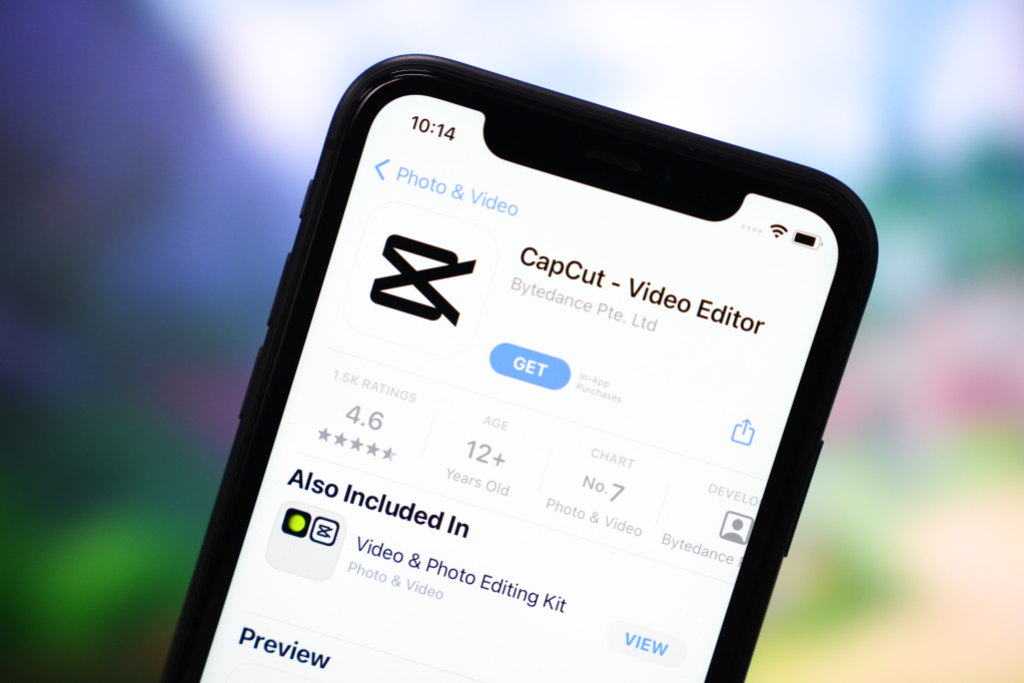
CapCut Web エディターはフル機能を備えた、 ブラウザベースのビデオ編集ツール 完全に Web ブラウザ内で実行されます。ダウンロードやインストール、システム要件を気にする必要はありません。タブを開いてサインインすると (または約 30 秒でアカウントを作成すると)、プロの編集ワークスペースが表示されます。まさにその通りです。
正直に言うと、最初にその話を聞いたとき、私は半信半疑でした。ブラウザベースのエディタは歴史的に...たとえば、 圧倒的な。タイムラインの遅れ、機能の制限、輸出制限、ランダムなクラッシュ。しかし、CapCut の Web エディターには本当に驚きました。これは、デスクトップ アプリの水を薄めたおもちゃ版ではなく、ほとんどのクリエイターが日常的に必要とするものの 70 ~ 80% を処理する正当な編集ツールです。
長いビデオをアップロードすると、CapCut の AI が最も魅力的な瞬間を特定します。それは本質的に同じテクノロジーです AIクリップメーカー、Webインターフェイス用に最適化されています。ライブストリーム、ポッドキャスト録画、または短いクリップとして再利用したい長い形式のコンテンツからハイライトを抽出するのに適しています。
AI スタイルのエフェクト
AI が生成したビジュアル スタイルを映像に適用します。「アニメのように見せる」、「油絵効果」、「ビンテージ フィルムの粒子」などを考えてみましょう。これらは計算量が多く、ほとんどのローカル マシンに負担をかけるエフェクトですが、クラウドで処理されるため、低予算のラップトップでもスムーズにレンダリングされます。
CapCut Pro subscribers get priority レンダリング, which typically cuts these times in half. If you're publishing content on a schedule and time matters, that's one of the genuine benefits of the Pro subscription。
ダウンロード vs Direct Share
After 書き出し completes, you get two options: ダウンロード the file to your device, or share directly to connected social platforms. The direct share to TikTok is seamless — it pushes the video straight to your TikTok drafts. Instagram sharing opens the platform for you to post. YouTube requires a manual upload, but the ダウンロードed file is ready to go.
🌟
書き出し tip: If your internet connection is slow, 書き出し at 720p first to review the final result quickly. Once you're happy, re-書き出し at 1080p for the final version. This saves you from waiting 15 minutes only to realize you have a typo at the 2-minute mark.
Performance Tips: Making the Webエディター Run Smoothly
The Webエディター is well-optimized, but you can make it even smoother with a few simple tweaks. These come from my own trial-and-error plus talking with other creators who use the Webエディター daily.
Close unnecessary browser tabs. Every open tab eats RAM. The Webエディター is a memory-hungry application by nature. Close your 47 open tabs (we've all been there) and you'll notice an immediate improvement in タイムライン scrubbing smoothness.
Use Chrome or Edge. I keep repeating this because it matters. Chrome's V8 engine and WebAssembly implementation give CapCut the best performance. Firefox works, Safari works, but Chrome is noticeably smoother.
Enable hardware acceleration. In Chrome, go to Settings → System → "Use hardware acceleration when available." This lets Chrome use your GPU for レンダリング previews, which makes a real difference when scrubbing through the タイムライン.
Work with shorter クリップ. Instead of uploading a 30-minute raw file and trimming in the browser, trim the rough sections out on your device first (even using a basic tool), then upload the parts you need. Smaller uploads = faster processing = smoother editing.
Clear browser cache periodically. Over time, cached data from previous editing sessions can slow things down. Clear your browser's cache every couple of weeks if you're a regular Webエディター user.
Use a wired connection when possible. WiFi fluctuations cause the most frustrating issues in the Webエディター — preview stuttering, upload failures, and slow 書き出しs. A wired Ethernet connection gives you consistent bandwidth.
Don't stack too many effects on one クリップ. Each effect layer requires additional cloud processing. If your preview starts lagging, try reducing the number of simultaneous effects or simplifying your approach.
When to Use Web vs デスクトップ: A Practical Decision Guide
After using both extensively, here's my honest recommendation for when to pick which platform.
Use the Webエディター When:
You're on a Chromebook or a machine where you can't install software
You're borrowing someone's computer and need to make a quick edit
You want to create a simple social media クリップ (Reel, TikTok, Short) in under 10 minutes
You're at work or school and can't install applications
You want to use a テンプレート — the テンプレート experience is identical on web and デスクトップ
You need to collaborate — sharing a web link to a project is easier than syncing デスクトップ files
Your computer has limited storage and you don't want to ダウンロード a 500MB application
You want to try CapCut before committing to ダウンロードing it
Use the デスクトップ App When:
Your project needs 4K 書き出し resolution
You're doing advanced カラーグレーディング with curves, wheels, and scopes
You need キーフレーム animations for precise motion control
You're creating speed ramps with bezier curve control
Your project has many tracks (10+ layers of video, audio, text)
You need to edit offline (traveling, unreliable internet)
You're working on a longer project (10+ minutes) that needs fine-tuning
You need audio mixing with precise control over multiple tracks
Why Not Try Both?
Start a project in the Webエディター, then open it on the デスクトップ app for the finishing touches. Your projects sync automatically.
I believe in being upfront about limitations. No tool is perfect, and pretending otherwise wastes your time. Here's what the Webエディター currently lacks compared to the デスクトップ version:
No 4K 書き出し — Capped at 1080p. For most social media, this doesn't matter. For YouTube cinephiles, it does.
No advanced キーフレーム — You can't animate individual properties (scale, rotation, position) with custom easing curves. The デスクトップ app gives you full キーフレーム control.
No bezier スピードカーブ — Speed changes are linear or use プリセット. The デスクトップ's smooth speed ramp tool is one of its best features, and it's not available online.
Limited カラーグレーディング — Filters and basic adjustments (brightness, contrast, saturation), but no color wheels, curves, or LUT import.
No offline mode — Internet goes down, your editing session goes down. The デスクトップ app keeps working regardless.
Fewer audio controls — Basic volume, fade, and music library. No equalizer, no audio ducking, no advanced noise reduction.
Limited track count — You can stack tracks, but complex multi-layer compositions are better handled on デスクトップ.
No plugin support — The デスクトップ version supports various plugins and integrations. The Webエディター is a closed environment.
The encouraging thing? CapCut has been steadily adding features to the Webエディター throughout 2024 and 2025. Features that were デスクトップ-only a year ago (like AI 背景除去 and enhanced テンプレート) have made their way to the web. I'd expect the gap to keep narrowing over time.
7 Pro Tips for the CapCut Webエディター
These are tips I've picked up from daily use — the kind of stuff that's not in the official documentation but makes a real difference in your workflow.
Use keyboard shortcuts religiously.Ctrl+B 分割する、 Ctrl+Z 元に戻すには、 Space to play/pause, Delete to remove selected クリップ. These work in the Webエディター just like the デスクトップ app, and they'll cut your editing time significantly.
Bookmark the エディター URL. Instead of navigating through capcut.com every time, bookmark the direct エディター URL. It saves you two clicks and about 5 seconds on every session. Small thing, but it adds up.
Upload your brand assets once. Upload your logo, intro クリップ, outro, brand fonts, and frequently used audio to your CapCut cloud media library. They persist across sessions, so you don't need to re-upload every time you start a new project.
Preview at lower resolution. If the タイムライン preview is stuttering, look for a playback quality setting (usually near the preview window). Dropping preview quality to 480p makes scrubbing buttery smooth, and it doesn't affect your final 書き出し quality.
Use "Duplicate" instead of rebuilding. Finished a video and want to make a variant? Duplicate the project and modify the copy. It's faster than starting from scratch and ensures consistency across your content.