If you've ever tried to install an app outside the Google Play Store, you've probably come across the term "APK." It stands for Android Package Kit — essentially the file format Android uses to distribute and install applications. Think of it as the Android equivalent of a .exe file on Windows or a .dmg on Mac. Every app you've ever installed from the Play Store was an APK behind the scenes — Google just handled the download and installation automatically.
So why would you want to download the CapCut APK directly instead of just grabbing it from the Play Store? There are actually several good reasons, and they're more common than you'd think. Maybe you're in a country where the Google Play Store doesn't carry CapCut (it happens more often than ByteDance would like to admit). Maybe your device doesn't have Google Play Services — Huawei users, I'm looking at you. Or perhaps you want a specific older version because the latest update changed something you relied on.
Whatever the reason, downloading the CapCut APK is straightforward — if you know where to get it safely. And that's what this guide is really about. Not just the download link, but understanding the process, the safety precautions, and the differences between APK installation and the standard Play Store route.
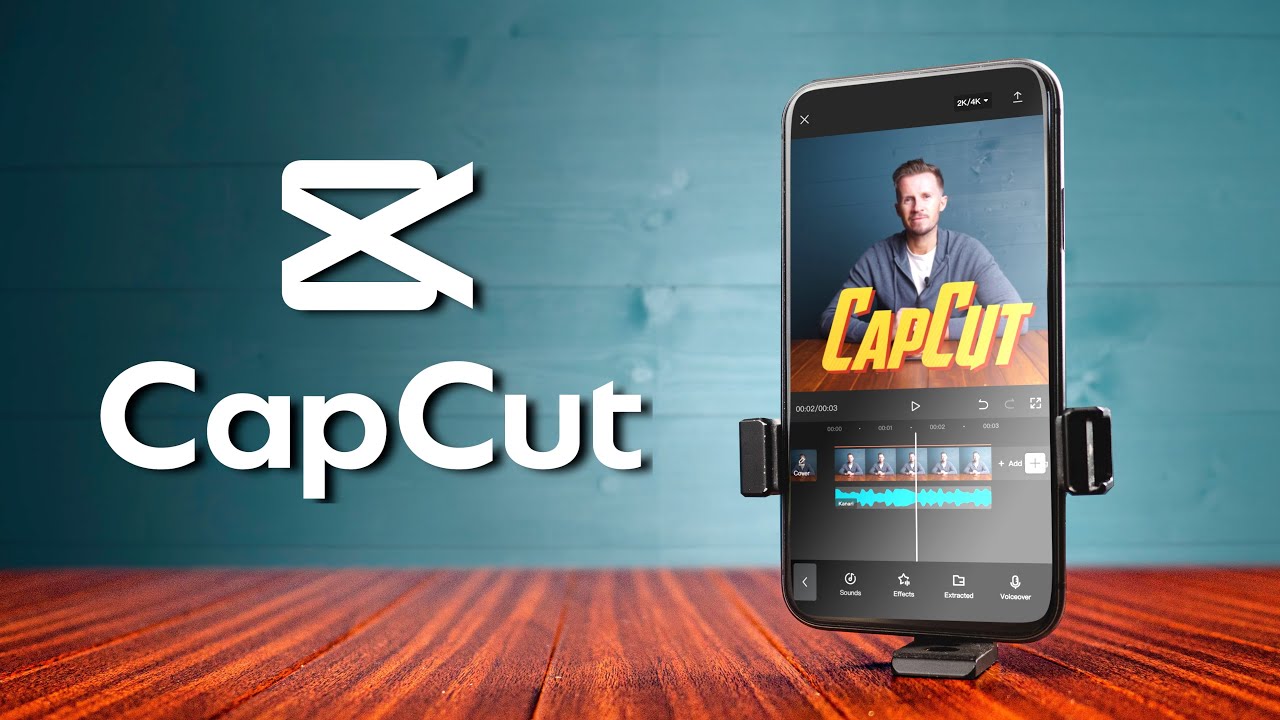
CapCut delivers a full professional editing suite right on your Android device
⚠️
Safety Warning: Only download the CapCut APK from the official CapCut website or verified trusted sources. Third-party APK repositories can repackage apps with malware, adware, or spyware. If a site asks you to complete surveys, disable your antivirus, or install additional apps before giving you the APK — leave immediately. The real CapCut APK is always free and requires no extra steps.
Why Download the APK Instead of Using the Play Store?
Let's be real: for most people, the Google Play Store is the easiest way to get CapCut. Tap install, wait, done. But there are legitimate scenarios where the APK route makes more sense — and none of them involve piracy or anything shady.
Regional Availability Issues
CapCut's availability on the Play Store varies by region. In some countries, regulatory or licensing issues mean the app doesn't show up in search results or is outright blocked. If you're traveling or living in one of these regions, the APK is your only option. I've personally been in situations where I needed to edit a quick video abroad and the Play Store told me CapCut "isn't available in your country." The APK saved me.
Devices Without Google Play Services
This is a bigger deal than most people realize. Huawei devices manufactured after May 2019 don't include Google Play Services, which means no Play Store. That's millions of devices worldwide. Amazon Fire tablets are in the same boat. If you own one of these devices, APK installation is the standard way to get apps that aren't in alternative app stores.
Version Control
Sometimes CapCut pushes an update that changes your workflow. Maybe they redesigned the interface, or a feature you used daily got moved or removed. With APK installation, you can keep a specific version that works for you. I know creators who intentionally stay on older versions because a particular export setting or effect was changed in newer releases.
Faster Access to New Versions
Ironically, APK downloads sometimes give you access to new versions before the Play Store rolls them out in your region. Google's staged rollouts mean some users wait days or weeks for updates. If there's a feature you're excited about, the APK lets you skip the wait.
Corporate or Managed Devices
Some work-managed Android devices restrict Play Store access. If your company allows sideloading but blocks certain store categories, APK installation might be the only way to get creative tools like CapCut on your work device (check your company's policy first, obviously).
Ready to Download CapCut?
Get the latest version of CapCut for your Android device — free, full-featured, and watermark-free.
Before you download anything, let's make sure your device can actually run CapCut. There's nothing more frustrating than downloading a 225MB file only to find out your phone can't handle it.
Requirement
Minimum
Recommended
Android Version
Android 5.0 (Lollipop)
Android 10+
RAM
2 GB
4 GB or more
Storage (APK)
225 MB free
1 GB+ free
Processor
Quad-core 1.5 GHz
Octa-core 2.0 GHz+
Screen
720p display
1080p or higher
Internet
Required for download
Wi-Fi for templates & AI
A note on storage: the 225MB is just the APK file itself. Once installed, CapCut downloads additional resources — effects, fonts, templates, and AI models. After the first launch, expect the app to use 400MB to 1GB. And of course, your video projects will need space too. A single 1-minute 1080p export can be 100–200MB. If you're editing regularly, I'd recommend having at least 5GB of free space to work comfortably.
💡
Performance tip: If your phone has less than 3GB of RAM, close other apps before editing in CapCut. The app uses significant memory for real-time preview rendering, and background apps competing for RAM can cause lag, dropped frames, or even crashes during export.
Step-by-Step: How to Safely Download the CapCut APK
Here's the exact process I follow every time I need to install or update CapCut via APK. It takes about 3–5 minutes from start to finish.
1
Check Your Android Version
Go to Settings → About Phone and confirm you're running Android 5.0 or higher. Note your available storage too.
2
Enable Unknown Sources
Navigate to Settings → Security → Install Unknown Apps. Enable permission for your browser (Chrome, Firefox, etc.).
Tap the downloaded APK file, confirm the installation prompt, wait for it to complete, and open CapCut from your app drawer.
Let me walk through each step in detail, because the specifics matter — especially for the security settings.
Step 1: Enable Installation from Unknown Sources
This is the step that trips most people up, and Android has made it both more secure and more confusing over the years. Here's how it works on modern Android:
On Android 8.0 and newer (which is most phones these days), you don't flip a single global switch anymore. Instead, you grant permission to specific apps to install APKs. This is actually much safer — you're saying "I trust Chrome to install this one thing" rather than "any app can install anything."
Open Settings on your Android device
Go to Apps & Notifications (or just Apps)
Tap Special app access (you might need to tap the three-dot menu first)
Select Install unknown apps
Find your browser (Chrome, Samsung Internet, Firefox — whichever you'll use to download the APK)
Toggle "Allow from this source" to ON
On Android 7.0 and older: Go to Settings → Security → Unknown Sources and toggle it on. You'll see a warning popup — acknowledge it.
⚠️
Important: After installing CapCut, I strongly recommend going back and disabling the "Install unknown apps" permission for your browser. Leaving it enabled means any website could potentially trick you into installing something malicious. The 30 seconds it takes to toggle it off is worth the security.
Step 2: Download the CapCut APK
Open your preferred mobile browser and navigate to the official CapCut download page. Here's what to look for to confirm you're on a legitimate source:
The URL should be on an official CapCut domain or a well-known app distribution platform
The file size should be approximately 200–250MB (if it's 5MB, it's not the real app)
There should be no requirements to install other apps, complete surveys, or disable security features
The page should clearly state the version number and last update date
Tap the download button. Your browser will likely show a warning that says something like "This type of file can harm your device." This is a standard Android warning for all APK downloads, not a specific warning about CapCut. Tap Download anyway or OK.
The download will take 1–5 minutes depending on your connection speed. You can track progress in your notification bar.
Step 3: Install the APK File
Once the download is complete:
Tap the download notification in your notification bar, or open your File Manager and navigate to the Downloads folder
Tap the APK file (it'll be named something like CapCut_13.5.0.apk)
Android will show you the permissions the app requires — review these (camera, storage, microphone access are normal for a video editor)
Tap Install
Wait for the installation progress bar to complete (usually 10–30 seconds)
Tap Open to launch CapCut, or Done to install and open later
Step 4: First Launch and Setup
When you first open CapCut after APK installation, you'll go through a brief setup:
Grant permissions — CapCut will ask for access to storage (to read your videos and photos), camera, and microphone. Grant all of these for full functionality
Sign in or create an account — Use email, Google, Facebook, or TikTok login. Your account syncs projects across devices
Wait for initial resource download — CapCut downloads effects, fonts, and templates in the background. This can be 100–300MB depending on your region. Use Wi-Fi for this
Start editing — You're ready to go. Create a new project or try a template
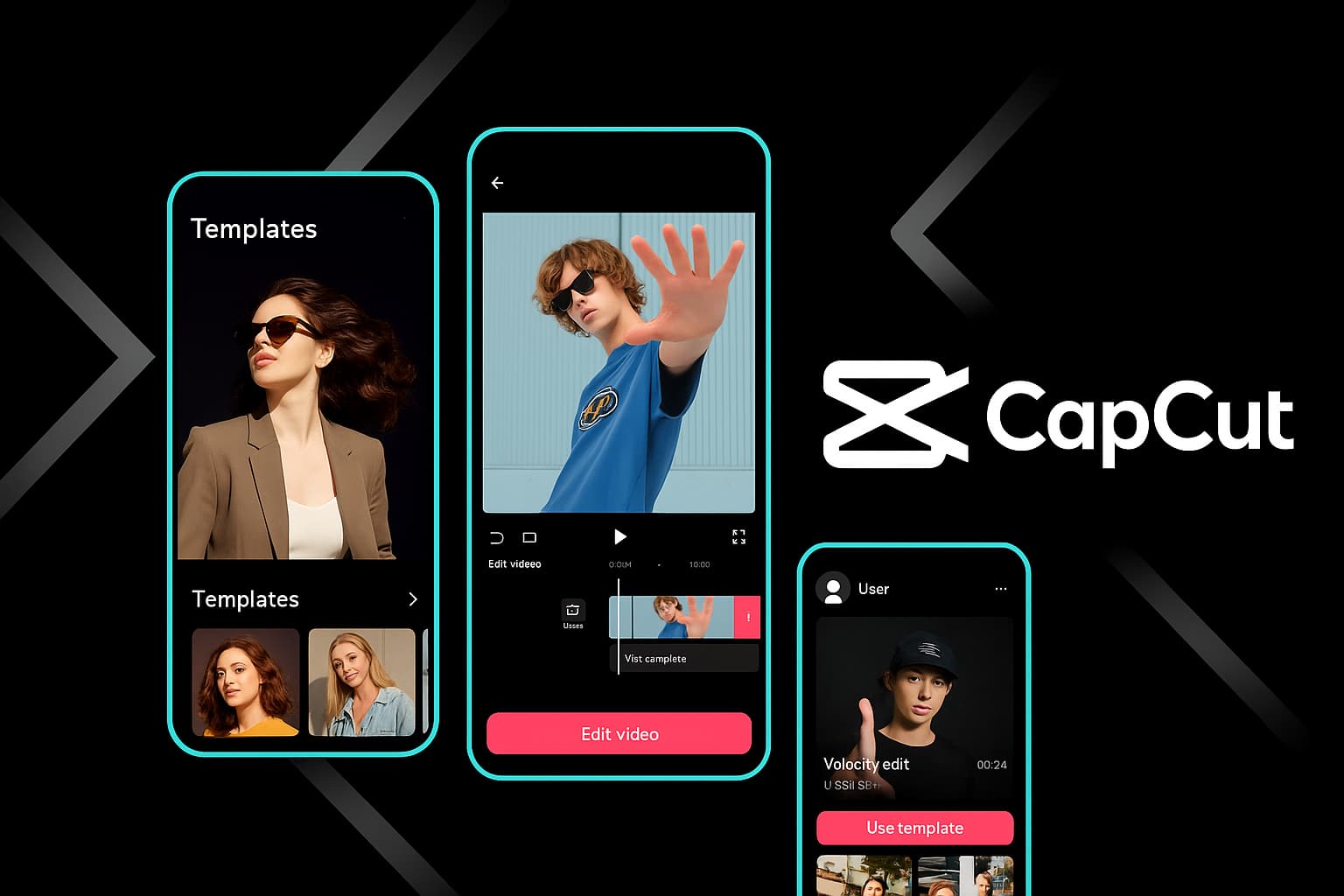
CapCut's mobile interface gives you access to the same powerful AI tools as the desktop version
Get CapCut on Your Android
Join over 500 million users editing videos with CapCut's powerful, free tools.
I want to be straight with you: APK sideloading can be risky if you're not careful. The Play Store has Google Play Protect scanning apps for malware, and when you bypass that, you're on your own. That doesn't mean APK installation is inherently dangerous — it just means you need to be a bit more vigilant.
Here's my personal checklist for safe APK downloads:
Source verification — Only download from the official CapCut website. If you're using a third-party mirror, research its reputation first. Sites like APKMirror have strong verification processes; random "free APK download" sites usually don't
File size check — The legitimate CapCut APK is 200–250MB. If the file is dramatically smaller (under 50MB), it's likely a fake or a downloader that will install additional software
Permission review — During installation, Android shows you what permissions the app requests. CapCut legitimately needs storage, camera, and microphone access. If an APK claiming to be CapCut asks for SMS access, phone call permissions, or administrator privileges — that's a red flag
Scan with Google Play Protect — Even sideloaded APKs can be scanned. Go to Play Store → Profile → Play Protect → Scan after installation. If Play Protect flags it, uninstall immediately
Check the developer name — After installation, go to Settings → Apps → CapCut → App info. The developer should be listed as "Bytedance Pte. Ltd." or a regional variant. If it says anything else, uninstall it
Disable unknown sources after installation — Don't leave the "Install from unknown sources" permission enabled longer than necessary
🔒
Never do this: Some fake APK sites tell you to disable Google Play Protect or your antivirus "for the installation to work." This is always a scam. The real CapCut APK installs perfectly fine with all security features enabled. If a site tells you to lower your security, the file is malicious.
APK vs. Play Store: What's Actually Different?
This is a question I get a lot, and the honest answer is: functionally, almost nothing. The APK from the official source contains the exact same code as the Play Store version. Same features, same UI, same performance. But there are some practical differences worth knowing about.
Aspect
APK Installation
Google Play Store
App content
Identical
Identical
Automatic updates
❌ Manual
✔ Automatic
Google Play Protect scan
Manual scan after install
✔ Automatic
Region restrictions
✔ None
May be restricted
Version choice
✔ Any version
Latest only
Install on non-Google devices
✔ Works
❌ Requires Play Services
In-app purchases
May require Play Services
✔ Full support
Ease of installation
Moderate (manual)
✔ One-tap
The biggest practical difference is updates. With the Play Store, CapCut updates automatically (or with a single tap). With APK installation, you'll need to manually check for new versions and download updated APK files yourself. That's the trade-off for the flexibility APK gives you.
One thing to note: in-app purchases (like CapCut Pro subscriptions) may behave differently on devices without Google Play Services. If you're on a Huawei device without Google, you might need to subscribe through the CapCut website or use an alternative payment method. The free features work identically regardless.
Troubleshooting Common Installation Issues
Even when you do everything right, Android can sometimes throw curveballs during APK installation. Here are the most common issues and how to fix them — all from personal experience or helping friends troubleshoot.
"App Not Installed" Error
This is the most common one, and it has several possible causes:
Insufficient storage — You need roughly 2x the APK size in free space for installation to work (the system needs temporary space for unpacking). Clear cache, delete old files, or move media to an SD card
Corrupted download — The APK file may have been partially downloaded or corrupted during transfer. Delete the file and download it again, preferably on a stable Wi-Fi connection
Version conflict — You have a version of CapCut installed that was signed with a different certificate. This happens if you previously installed from a different source. Uninstall the existing version first (back up your projects), then install the new APK
Android version too old — Double-check that your Android version meets the minimum requirement (5.0+)
"Parse Error" or "There was a problem parsing the package"
The APK file is corrupted — re-download it
The APK is for a newer Android version than yours — check compatibility
Your file manager is modifying the file — try installing from a different file manager or directly from the browser download notification
CapCut Crashes Immediately After Opening
Restart your phone and try again (the classic fix that actually works more often than you'd think)
Make sure you have enough free RAM — close other apps before launching CapCut
If you're on a very old or low-end device, consider trying an older version of the APK that may be better optimized for lower-spec hardware
"Blocked by Play Protect" Warning
If Google Play Protect blocks the installation, it usually means the APK wasn't sourced from the official developer channel. However, Play Protect can occasionally flag legitimate APKs that haven't been submitted to the Play Store for scanning. If you're absolutely certain you downloaded from the official source, you can tap "Install anyway." If you have any doubt about the source, don't override the warning.
💡
Pro tip: If you keep running into installation issues, try downloading the APK using a different browser. Some phone manufacturers' built-in browsers handle APK downloads differently than Chrome. I've seen cases where Samsung Internet blocked an APK that Chrome downloaded without issues.
Key CapCut Mobile Features You Get with the APK
Once you've got CapCut installed via APK, you have access to the full mobile editing suite. And honestly, calling it a "mobile editor" undersells it — these are features that desktop editors charged for just a few years ago. Here's what you're getting:
Multi-Layer Timeline Editing
CapCut's mobile timeline supports multiple video and audio tracks. You can overlay clips, add picture-in-picture, stack text layers, and work with audio tracks independently. Pinch to zoom in and out of the timeline, drag to rearrange clips, and split with a single tap. It's not as spacious as editing on a desktop, but it's the most capable mobile timeline I've used.
AI-Powered Auto Captions
This is the feature that probably saves creators more time than any other. CapCut's speech recognition generates subtitles automatically in over 20 languages. Tap Text → Auto Captions, select your language, and wait about 30 seconds. The accuracy is genuinely impressive — I'd estimate 93–95% accuracy with clear audio. You can customize the caption style, font, position, and animation after generation.
Background Removal (AI Cutout)
One-tap background removal on video — not just still images. Select a clip, tap Cutout, and CapCut's AI separates the subject from the background in real-time. The edge detection handles hair and complex outlines surprisingly well. You can then place your subject on a different background, add blur, or create green-screen-style compositions without ever having used a green screen.
Speed Curves and Speed Ramping
Basic speed control (2x, 0.5x) is nothing special. What makes CapCut different is the speed curve editor. You get a bezier curve that lets you create smooth speed ramps within a single clip — gradually slowing from normal to slow motion and back. This is the effect you see in cinematic TikToks and Reels where the subject's movement flows from fast to buttery smooth. CapCut gives you preset curves and a custom editor.
Trending Templates
CapCut's template library is updated constantly with trending formats from TikTok, Instagram, and YouTube Shorts. You pick a template, drop in your clips, and the template handles transitions, timing, music sync, and effects. It's the fastest way to create content that matches current trends. The Reels templates alone have saved me hours of work.
Effects, Filters, and Transitions
The effects library is enormous — and most of it is free. Glitch effects, VHS filters, retro film grain, cinematic color grades, face tracking stickers, body effects, and motion blur. The transitions library is equally deep, with everything from simple fades to complex 3D transformations. New effects are added regularly, often tied to trending styles on social media.
Text-to-Speech Voiceovers
Type your script, choose a voice (there are dozens of options including natural-sounding, character voices, and celebrity-style voices), and CapCut generates a voiceover. The latest voice models are eerily natural — they have proper intonation, pausing, and emotional variation. Perfect for faceless content, explainers, and narrated videos.
Direct Social Media Sharing
After exporting, CapCut lets you share directly to TikTok, Instagram, YouTube, WhatsApp, and other platforms. The integration with TikTok is especially tight — you can post directly without leaving the app, and CapCut-edited videos sometimes get a slight algorithmic boost on TikTok (ByteDance owns both apps, after all).
Start Editing on Android Today
All these features — for free, no watermarks, no strings attached.
One of the trade-offs of APK installation is that you lose automatic updates. Here's how to stay current:
Check your current version — Open CapCut, go to Settings (gear icon), and look for the version number at the bottom
Check for new versions — Visit the official CapCut website periodically, or follow CapCut's social media channels for update announcements
Download the latest APK — When a new version is available, download it the same way you got the original
Install over the existing version — You don't need to uninstall first. Android handles the upgrade automatically, preserving your data, projects, and settings
I'd recommend checking for updates at least once a month. CapCut releases updates frequently, and they often include new AI features, effects, performance improvements, and security patches. Missing a security update can leave your device vulnerable.
🌟
Tip: If the Google Play Store is available on your device but you initially installed via APK, you can sometimes "claim" the app in the Play Store afterward. Search for CapCut in the Play Store — if it shows "Update" instead of "Install," the Play Store has recognized your sideloaded installation and will handle updates automatically going forward.
Can You Get CapCut Pro via APK?
Yes — but with a caveat. You can subscribe to CapCut Pro within the app regardless of how you installed it. The subscription gives you premium templates, extra AI credits, 100GB cloud storage, priority rendering, and commercially-licensed music and fonts.
However, payment processing works differently depending on your device:
Devices with Google Play Services: CapCut Pro subscriptions process through Google Play billing, just like any other in-app purchase. Works seamlessly even if you installed via APK
Devices without Google Play Services (Huawei, Amazon Fire): You may need to subscribe through the CapCut website or use alternative payment methods. Some users report success with Huawei AppGallery billing
The free version is already extremely capable, so don't feel pressured into Pro. But if you create content professionally and use templates or AI features heavily, the CapCut Pro subscription is genuinely worth evaluating.
CapCut APK on Android Tablets
The CapCut APK works beautifully on Android tablets, and honestly, editing on a tablet is a significantly better experience than on a phone. The larger screen gives you more room to work with the timeline, preview your edits at a reasonable size, and access tools without constant zooming and scrolling.
A few tablet-specific notes:
Samsung Galaxy Tab series runs CapCut excellently, with S Pen support for precise timeline edits
Lenovo Tab and Xiaomi Pad series handle CapCut well for mid-range tablets
Amazon Fire tablets can run CapCut via APK, though performance varies by model. Fire HD 10 handles it reasonably; older models struggle with 1080p export
CapCut automatically adjusts its layout for tablet screen sizes — you get a wider timeline, larger preview window, and more visible tool options
If you edit frequently and find your phone screen too cramped, a tablet with a keyboard case and stylus becomes a surprisingly effective portable editing station. Pair it with Bluetooth headphones for audio monitoring, and you've got a mobile editing setup that rivals a laptop for quick social media content.
Looking for CapCut on Other Platforms?
The APK handles Android, but CapCut is available everywhere. Here's where to find it for your other devices:
iPhone & iPad: Check our CapCut iOS download guide for the App Store installation process and iOS-specific features
Windows & Mac: The CapCut desktop download guide covers the full PC experience with multi-track editing and advanced color grading
Browser: Use the CapCut web editor for quick edits without installing anything — great for Chromebooks and shared computers
Pro features: Our CapCut Pro guide explains premium features and whether the subscription is worth it for your workflow
Frequently Asked Questions
Common questions about downloading and installing the CapCut APK on Android.
Yes, as long as you download from the official CapCut website or a verified trusted source. The APK file is identical to the Play Store version and contains no additional code or modifications. Avoid third-party APK repositories that repackage apps, as they may inject malware or adware. Always verify the file size (should be around 200–250MB) and check the developer name after installation.
Common reasons include: CapCut isn't available in the Play Store in your region, your device doesn't have Google Play Services (Huawei, Amazon Fire tablets), you want a specific version of the app, or you want access to new versions before they roll out in your region. APK installation gives you more control over which version you run and bypasses regional restrictions.
CapCut requires Android 5.0 (Lollipop) or higher as a minimum. For optimal performance — especially with AI features like auto-captions, background removal, and 4K export — Android 10 or higher with at least 4GB of RAM is recommended. The app runs on most phones manufactured after 2016.
Functionally, yes. The APK from official sources is identical to the Google Play Store version — same features, same interface, same performance. The key difference is that Play Store installations receive automatic updates, while APK installations require you to manually download new versions when they're released. In-app purchases also work normally as long as your device has Google Play Services.
Yes. Download the latest APK and install it over the existing version — your data and projects will be preserved. You don't need to uninstall first. If the Google Play Store is available on your device, you may also be able to switch to automatic Play Store updates by finding CapCut in the store and tapping "Update."
The APK file itself is approximately 225MB. After installation and initial setup (downloading effects, fonts, and AI models), the app uses 400MB–1GB. You'll also need additional space for video projects and exports — a single 1-minute 1080p video can be 100–200MB. Plan for at least 5GB of free space for comfortable editing.
If you install a new version over the existing one (without uninstalling first), your projects and settings are preserved. If you uninstall and reinstall, local projects may be deleted. To protect your work, sign in to your CapCut account — this enables cloud backup of your projects, which can be restored on any device.
Absolutely. CapCut works great on Android tablets and provides an optimized layout for larger screens. Samsung Galaxy Tab, Lenovo, Xiaomi, and Amazon Fire tablets all support the APK. Tablets with stylus support (like the S Pen) offer extra precision for timeline editing, and the larger screen makes the editing experience significantly more comfortable.
Ready to Edit on Android?
Download CapCut APK and start creating professional-quality videos on your Android device — completely free.