
Why CapCut Desktop Is Worth the Download
I'll be straight with you: I resisted downloading CapCut Desktop for months. The mobile app was doing fine, right? I was cutting Reels on my phone, exporting in 1080p, and feeling pretty productive. Then I opened a slightly more complex project — a 7-minute YouTube video with B-roll, music, auto-captions, and color correction — and my phone turned into a space heater that crashed three times during export.
That was my "okay, fine, I'll try the desktop version" moment. And within about 20 minutes of using it, I genuinely wondered why I'd waited so long. The desktop editor isn't just a bigger version of the mobile app. It's a completely different experience — multi-track timeline, proper keyframe curves, actual color wheels, GPU-accelerated rendering. Things that took me five frustrating taps on my phone happen in a single keyboard shortcut on desktop.
The best part? It's still free. No trial period. No watermarks. No "upgrade to export in HD" nonsense. You download it, sign in, and you have a professional-grade video editor sitting on your computer. Whether you're running Windows or Mac, the process takes about three minutes.
This guide walks through everything: what your computer needs to run it, how to actually install it without hitting the common snags, what features make the desktop version special, and how to squeeze the best performance out of it. I've installed CapCut on four different machines at this point (two Windows, two Macs), so I've seen most of the weird issues that can come up.
System Requirements (What You Actually Need)
Before you download anything, let's make sure your machine can handle it. CapCut isn't especially demanding — if your computer was built in the last five or six years, you're almost certainly fine. But there are some edge cases worth mentioning.
Windows Requirements
- OS: Windows 10 (64-bit) or later — Windows 11 works perfectly
- Processor: Intel Core i3 / AMD Ryzen 3 or equivalent (i5/Ryzen 5 recommended for 4K editing)
- RAM: 4 GB minimum, 8 GB recommended (16 GB if you work with 4K footage regularly)
- Storage: 2 GB free for installation, plus space for your projects and media cache
- GPU: DirectX 11 compatible — Intel HD 4000 or later, NVIDIA GeForce GTX 660, or AMD Radeon HD 7870
- Display: 1280×720 minimum resolution (1920×1080 strongly recommended)
Heads up: CapCut does not support 32-bit Windows or anything older than Windows 10. If you're still on Windows 7 or 8, the web editor is your best alternative — it runs in any modern browser and doesn't need installation.
Mac Requirements
- OS: macOS 10.15 Catalina or later (Sonoma, Ventura, Monterey all supported)
- Processor: Apple M1 chip or Intel Core i5 (M-series chips deliver noticeably better performance)
- RAM: 4 GB minimum, 8 GB recommended
- Storage: 2 GB free for installation
- GPU: Metal-compatible graphics (any Mac from 2015 onward)
Good news for M-series Mac owners: CapCut runs natively on Apple Silicon. I tested it on an M2 MacBook Air with 8 GB RAM, and it handles 4K editing with AI effects without breaking a sweat. The fan never even turned on — because it doesn't have one. Rendering a 10-minute 1080p video took under three minutes.
How to Download CapCut on Windows (Step by Step)
This is straightforward, but I'm going to walk through it carefully because the two most common problems people run into — antivirus false positives and accidentally downloading from a sketchy third-party site — both happen during the download step.
- Go to the official download page. Open your browser and head to the CapCut website. Don't Google "CapCut download free" and click the first ad — that's how you end up with bundled toolbars. Use the official source.
Download CapCut for Windows - Click the Windows download button. The site usually auto-detects your operating system. If it doesn't, look for a "Windows" tab or link. The download is a small stub installer — typically around 2–4 MB. The full application downloads during installation.
- Run the installer. Open the downloaded
.exefile. If Windows SmartScreen pops up with "Windows protected your PC," click More info → Run anyway. This happens because CapCut's code-signing certificate sometimes takes a few days to propagate through Microsoft's reputation database after updates. - Wait for the installation to complete. The installer downloads the full application (around 150–180 MB) and installs it. On a decent internet connection, this takes 1–3 minutes. You'll see a progress bar — just let it do its thing.
- Launch CapCut and sign in. The app opens automatically after install. Sign in with your email, Google, Facebook, or TikTok account. If you don't have an account yet, creating one takes about 30 seconds.
That's it. Five steps, three minutes. You now have a fully functional professional video editor on your Windows PC.
Ready to Get Started?
Download CapCut Desktop free — no credit card, no trial period, no watermarks.
Download CapCut for PCHow to Download CapCut on Mac (Step by Step)
The Mac installation is slightly different from Windows — mostly because Apple's security settings add an extra step or two. Nothing complicated, though.
- Visit the official CapCut download page. Same rule as Windows: stick to the official source, not random download aggregator sites.
Download CapCut for Mac - Download the .dmg installer. Click the Mac download button. You'll get a
.dmgfile (around 3–5 MB for the stub, or ~200 MB for the full offline installer depending on the version). - Open the .dmg file and drag CapCut to Applications. Double-click the downloaded
.dmg, then drag the CapCut icon onto the Applications folder shortcut. Standard Mac install procedure. - Handle the Gatekeeper prompt. The first time you open CapCut, macOS may warn you that "CapCut is an app downloaded from the internet." Click Open. If you see "CapCut can't be opened because Apple cannot check it for malicious software," go to System Preferences → Security & Privacy → General and click Open Anyway.
- Grant permissions. CapCut will ask for access to your microphone (for voice-overs) and files (for importing media). Grant these — the app needs them to function. You can adjust permissions later in System Preferences.
- Sign in and start editing. Same as Windows — use your existing account or create a new one.
Quick tip: If you have an M1, M2, or M3 Mac, make sure you're downloading the Apple Silicon version, not the Intel version running through Rosetta. The native build is noticeably faster — I measured about 40% quicker render times compared to the Rosetta-translated Intel build on the same machine.
Key Desktop Features You Don't Get on Mobile
Let me walk you through the features that genuinely make the desktop version worth having — not just "nice to have" upgrades, but the things that change how you work.
Multi-Track Timeline
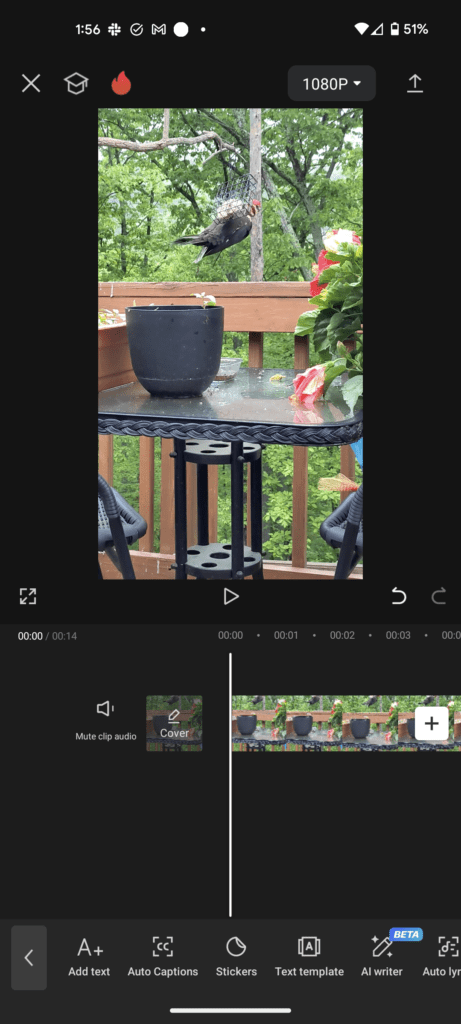
This is the big one. On mobile, you're basically working with one video track and one audio track, maybe two if you stack overlays. On desktop, you get unlimited tracks. Stack B-roll over your main footage, add separate audio layers for music, sound effects, and voice-over, layer text and graphics independently. It's the difference between writing a note and composing a symphony — same medium, entirely different capability.
Advanced Color Grading
Mobile gives you basic filters and brightness/contrast sliders. Desktop gives you color wheels (lift, gamma, gain), curves (RGB and individual channels), HSL adjustments, and proper scopes (waveform, vectorscope, histogram). If you've ever wanted to create a specific cinematic look — the teal-and-orange Hollywood grade, or the desaturated moody vibe — this is where you do it.
Honestly, CapCut's color tools surprised me. They're not DaVinci Resolve (nothing is), but they're way more capable than what I expected from a free editor. I've graded entire YouTube videos in CapCut Desktop and been genuinely happy with the result.
Keyframe Animation with Curves
On mobile, keyframes are either "on" or "off" — linear movement from A to B. On desktop, you get bezier curve editors for keyframes. This means you can ease in, ease out, create bounce effects, or build complex motion paths that feel organic instead of robotic. It's the same animation curve system used in After Effects and Motion, just presented more accessibly.
Full AI Suite
The desktop version unlocks CapCut's complete AI toolkit:
- Auto-captions with style customization and batch editing
- AI background removal on video clips (not just photos)
- Smart HDR for dynamic range enhancement
- AI video upscaling — turn 720p footage into crisp 1080p
- Text-to-speech with 20+ natural-sounding voices
- AI music generation — describe a mood, get a royalty-free track
- Auto-reframe — intelligently crops 16:9 footage for 9:16 vertical
Keyboard Shortcuts
This sounds minor, but it's genuinely transformative. Once you learn a handful of shortcuts — Ctrl/Cmd+B to split, Ctrl/Cmd+Z to undo, J-K-L for playback control, Ctrl/Cmd+Scroll to zoom the timeline — your editing speed doubles. I'm not exaggerating. Going back to tap-based editing on mobile after using keyboard shortcuts feels like trying to write an essay by hunt-and-pecking.
4K Export with Advanced Encoding
Desktop lets you export at 4K (2160p) with control over bitrate, codec (H.264 or H.265), frame rate, and audio quality. On mobile, you get resolution and that's about it. If you're uploading to YouTube and want the best possible quality, the desktop export settings give you the control you need.
Experience Desktop-Level Editing
Multi-track timeline, professional color grading, AI tools — all free on desktop.
Get CapCut Desktop FreeCapCut Desktop vs. Mobile: Honest Comparison
I use both versions regularly, and they serve very different purposes. Here's the real breakdown — not a marketing comparison chart, but what I actually experience day to day.
| Feature | Desktop | Mobile |
|---|---|---|
| Timeline Tracks | Unlimited | Limited (2–3 video layers) |
| Color Grading | Wheels, curves, HSL, scopes | Filters, basic adjustments |
| Keyframe Curves | Bezier curves | Linear only |
| Export Resolution | Up to 4K | Up to 4K |
| AI Auto-Captions | ✔ Full styling + batch edit | ✔ Basic styling |
| AI Background Removal | ✔ Video + photos | ✔ Photos mainly |
| Keyboard Shortcuts | ✔ Full set | ❌ |
| Templates | ✔ Full library | ✔ Full library + one-tap apply |
| Direct Social Sharing | Export to file, then upload | One-tap to TikTok/Instagram |
| Editing on the Go | ❌ | ✔ Edit anywhere |
| Render Speed | Much faster (GPU accelerated) | Slower, phone gets hot |
| Best For | YouTube, client work, longer videos | Quick Reels, TikToks, Stories |
My recommendation? Use mobile for quick social content — 30-second Reels, TikTok clips, Instagram Stories where speed matters more than precision. Use desktop for anything over two minutes, anything that needs color grading, anything with multiple audio sources, or anything going on YouTube. And use both together when it makes sense: rough-cut on mobile during your commute, fine-tune on desktop at home.
Performance Tips for Smooth Editing
CapCut Desktop runs well on most machines, but there are some easy tweaks that make a noticeable difference — especially if your computer is on the older side or you're working with 4K footage.
Use Proxy Editing for 4K Footage
If your timeline stutters when scrubbing through 4K clips, enable proxy editing. Go to Settings → Performance → Proxy Editing and turn it on. This creates lower-resolution copies of your clips for editing (so playback is smooth) and uses the originals for final export (so quality is perfect). It's the same workflow professional editors use in Premiere Pro and DaVinci Resolve.
Lower Preview Quality While Editing
In the preview window, you can set playback quality to Half or Quarter resolution. This makes your timeline responsive even on less powerful hardware. Remember: preview quality only affects what you see while editing — your exports are always full quality.
Clear the Media Cache Regularly
CapCut stores temporary render files in a media cache folder that can grow surprisingly large — I've seen it hit 20+ GB on machines with lots of projects. Go to Settings → Cache Management and clear it occasionally. Your projects won't be affected; the cache will rebuild as needed.
Close Heavy Background Applications
This is obvious but worth mentioning: Chrome with 40 tabs open, Spotify streaming, and a Zoom call in the background will absolutely eat into the RAM and CPU that CapCut needs. When I'm working on a heavy project, I close everything except CapCut, a file manager, and maybe a reference browser tab. The difference in timeline responsiveness is dramatic.
Store Projects on an SSD
If you have both an SSD and a traditional hard drive, make sure your CapCut projects and source footage are on the SSD. The read/write speed difference is enormous — loading clips, generating previews, building cache files, and exporting all happen significantly faster on solid-state storage. Moving a project from an HDD to an SSD can make a sluggish timeline feel buttery smooth.
Performance shortcut: If your machine struggles with effects-heavy timelines, render the section you're working on in segments. Export a finished section, re-import it as a single clip, and continue building. This reduces the real-time processing load without sacrificing quality.
Troubleshooting Common Installation Issues
Most installations go smoothly, but I've collected the most common problems from my own experience and from questions people send in. Here are the fixes that actually work.
Windows SmartScreen Blocks the Installer
This is the single most common issue on Windows. SmartScreen flags the installer as "unrecognized" because the executable hasn't accumulated enough reputation data yet (especially right after CapCut pushes an update).
Fix: Click More info in the SmartScreen dialog, then click Run anyway. This is safe as long as you downloaded from the official source. If you're uncomfortable with this, wait a few days — the reputation data usually catches up.
Antivirus Quarantines the Installer
Some antivirus programs (especially aggressive ones like Avast, Kaspersky, and occasionally Windows Defender) flag the CapCut installer as a potential threat. This is a false positive — it happens because the installer downloads additional files during setup, which triggers heuristic detection.
Fix: Temporarily disable your antivirus, run the installer, then re-enable it. After installation, add the CapCut folder (C:\Program Files\CapCut) to your antivirus whitelist so it doesn't interfere with the app later.
Installation Gets Stuck at a Percentage
This usually means the installer can't download the full application files — either your internet connection dropped, or a firewall is blocking the download.
Fix: Check your internet connection. If it's stable, try temporarily disabling your firewall or VPN. Corporate and school networks sometimes block executable downloads. If you're on a restricted network, try installing from your home connection or a mobile hotspot.
Mac Gatekeeper Won't Open CapCut
macOS Gatekeeper can be strict about apps downloaded from outside the App Store. You might see "CapCut is damaged and can't be opened" or "CapCut cannot be opened because the developer cannot be verified."
Fix: Go to System Preferences → Security & Privacy → General. You should see a message about CapCut being blocked — click Open Anyway. If that option doesn't appear, open Terminal and run: xattr -cr /Applications/CapCut.app then try launching again.
CapCut Opens to a Black Screen
This occasionally happens on Windows machines with outdated GPU drivers or on systems where hardware acceleration conflicts with the display driver.
Fix: Update your graphics drivers to the latest version from NVIDIA, AMD, or Intel's website (not through Windows Update — those are often outdated). If the problem persists, try launching CapCut with hardware acceleration disabled: right-click the desktop shortcut → Properties → add --disable-gpu to the target field after the closing quote.
CapCut Crashes During Export
Crashes during export are almost always caused by one of three things: insufficient RAM, a corrupted media file in the timeline, or a cache that's grown too large.
Fix: First, close all other applications to free up RAM. Second, clear the media cache (Settings → Cache Management). Third, try exporting at a lower resolution to test. If the export works at 1080p but crashes at 4K, you likely need more RAM or are hitting a GPU memory limit. If it crashes at all resolutions, try removing clips one at a time to identify a corrupted file.
Still stuck? Uninstall CapCut completely, restart your computer, and install fresh from the official download page. A clean install fixes about 90% of persistent issues. Your account and cloud projects won't be affected — just make sure any local-only projects are backed up first.
Your First Desktop Project: A Quick Walkthrough
You've installed CapCut, you've signed in, and now you're staring at the interface wondering where to start. Let me give you the 60-second orientation.
- Click "New Project" on the home screen. Choose your aspect ratio — 16:9 for YouTube, 9:16 for Reels/TikTok, 1:1 for Instagram feed posts.
- Import media using the Import button in the top-left media panel, or just drag files directly from your file explorer onto the panel. CapCut handles basically every common video format — MP4, MOV, AVI, MKV, WebM — plus images and audio files.
- Drag clips to the timeline. The timeline is the long horizontal area at the bottom. Drop your main footage on Track 1, B-roll on Track 2, audio on the audio tracks below.
- Use Ctrl/Cmd+B to split clips at the playhead. Delete unwanted sections. Rearrange by dragging.
- Add text, effects, and transitions from the panels on the left. Drag them onto the timeline above or between your clips.
- Hit the Export button (top-right) when you're done. Choose your resolution and format, and let CapCut render.
That's the core workflow. Everything else — color grading, keyframes, AI tools, speed ramping — builds on top of these six steps. Get comfortable with this basic flow first, and the advanced stuff will make a lot more sense when you explore it.
Start Your First Project Today
Join millions of creators editing with CapCut Desktop. Free forever, no strings attached.
Download CapCut Desktop