What Is CapCut and Why Everyone's Talking About It
If you've scrolled through TikTok, Instagram Reels, or YouTube Shorts in the past couple of years, you've already seen CapCut's work — even if you didn't know it. That smooth slow-motion transition? Probably CapCut. Those perfectly synced auto-captions? CapCut again. The app went from "oh, that free editor?" to the tool that professional content creators genuinely rely on.
CapCut is a free, all-in-one video editing application developed by ByteDance (yes, the same team behind TikTok). It launched in 2020, and honestly, it took the editing world by surprise. Before CapCut, you either paid for Premiere Pro, wrestled with DaVinci Resolve's learning curve, or settled for basic mobile editors that slapped watermarks on everything. CapCut changed that equation entirely.
What makes it special? Three things. First, it's genuinely free — no watermarks on exports, no paywalled basic features. Second, it's everywhere: your phone (iOS and Android), your desktop (Windows and Mac), and your browser. Third, it packs AI tools that would've cost hundreds of dollars just a few years ago — background removal, auto-captions, text-to-speech with natural voices, AI video generation.
Pro tip from experience: If you're just starting out, begin with the mobile app to learn the basics, then switch to the desktop version for serious projects. The transition feels natural because the interface logic is the same — just with more screen real estate and power on desktop.
Who This Guide Is For (and What You'll Find Here)
This site exists because I got tired of Googling "how to do X in CapCut" and landing on outdated articles that described version 2.0 when we're already on version 5. Or worse — those "top 10 video editors" listicles that clearly never opened the app.
Here's what we actually cover:
- Step-by-step download guides for every platform — whether you want the PC desktop app, the Android APK, or the iOS version
- Template libraries and tutorials — from Instagram Reels templates to iCal-style templates that are trending right now
- Feature deep-dives — the web editor, AI clip maker, and Pro features explained by someone who actually uses them daily
- Honest pricing breakdowns — is CapCut Pro worth it? (Spoiler: it depends on what you do. We'll help you decide.)
- Account setup help — signing up and logging in without the confusion
Every guide is written from hands-on experience. If I tell you a feature works a certain way, it's because I tested it myself — usually while procrastinating on an actual project.
CapCut Across Platforms: Mobile, Desktop, and Web
One of CapCut's biggest strengths is platform flexibility. You're not locked into one device. Start editing a video on your phone during your commute, refine it on your PC at home, and share it from the web editor at work. It all syncs through your account.
CapCut Mobile App (iOS & Android)
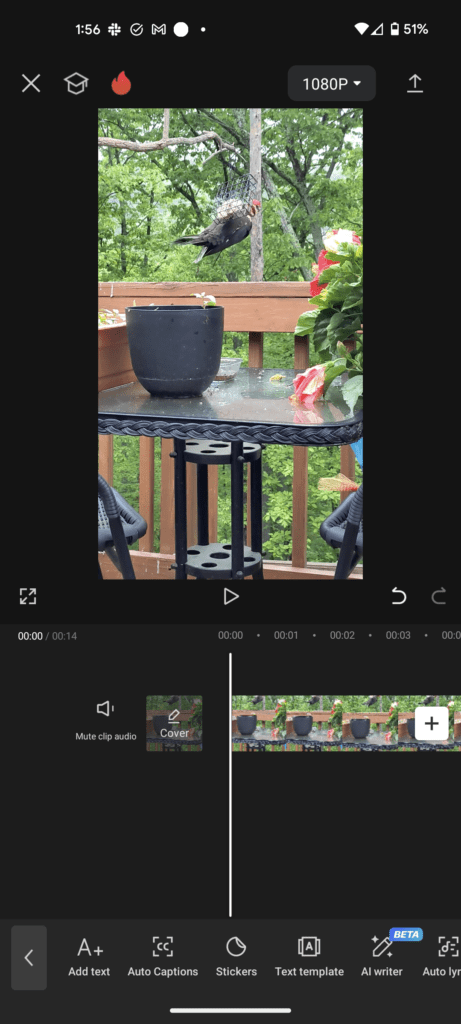
The mobile app is where most people discover CapCut. And honestly? It's ridiculously powerful for a phone app. You get multi-layer timeline editing, keyframe animations, chroma key, speed curves — features that desktop editors charged money for just five years ago.
The mobile app shines for quick edits. You shot a clip, you want to add trending audio and a couple transitions, maybe some auto-captions, and post it in 15 minutes. That's CapCut mobile's sweet spot. The one-tap templates are genuinely useful (not gimmicky like in most apps), and the direct export to TikTok and Instagram saves a surprising amount of time.
I'll be honest about the downsides too: working on longer projects (5+ minutes) on mobile can feel cramped. The timeline gets crowded, and fine-tuning audio levels on a tiny screen is... an exercise in patience. That's when you want the desktop version.
CapCut Desktop (Windows & Mac)
The desktop app is where CapCut stops being "that mobile editor" and becomes a legitimate production tool. Multi-track timeline, proper color grading with curves and wheels, speed ramping with bezier curves, keyframe animations on almost any property, and a massive library of effects and transitions.
What surprised me most when I first opened CapCut Desktop was the AI suite. Auto-captions that actually get your words right (even with accents!). One-click background removal on video — not just photos. Smart HDR. AI-generated B-roll suggestions. It feels like having a junior editor helping you.
Is it a Premiere Pro replacement? For 90% of content creators, yes. For broadcast-level color grading or complex multi-cam workflows, not yet. But for YouTube videos, social content, client work for small businesses, course creation — CapCut Desktop handles it all, and it handles it well.
CapCut Web Editor
The web editor is the underrated gem. No downloads, no installation, no "is my computer powerful enough?" anxiety. Open your browser, log in, and edit. It runs surprisingly smoothly even on older machines because the heavy lifting happens on CapCut's servers.
I've used it in situations where I needed to make a quick edit on a borrowed laptop, or when my main machine was rendering something else. It's not as feature-complete as the desktop app, but for trimming, adding text, applying effects, and exporting — it gets the job done fast.